Inviting your team
Invite your staff by email and give each person a role that matches what they're allowed to do. There's no limit on team members.
Everyone on your team signs in with their own account. Who opened a job, changed its status or sent a quote is written in the job history under their name.
The Team page
Open the Team page from the left menu.
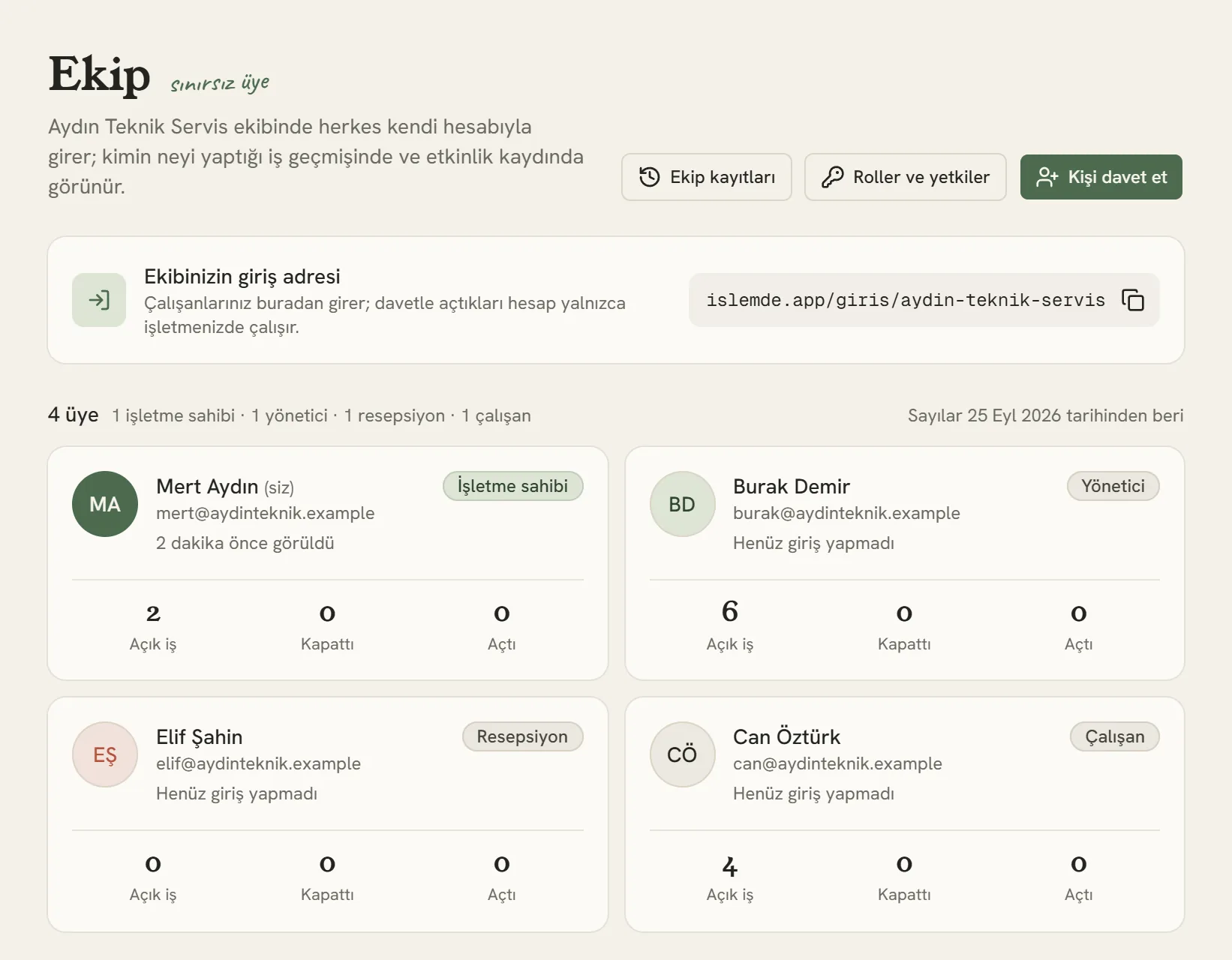
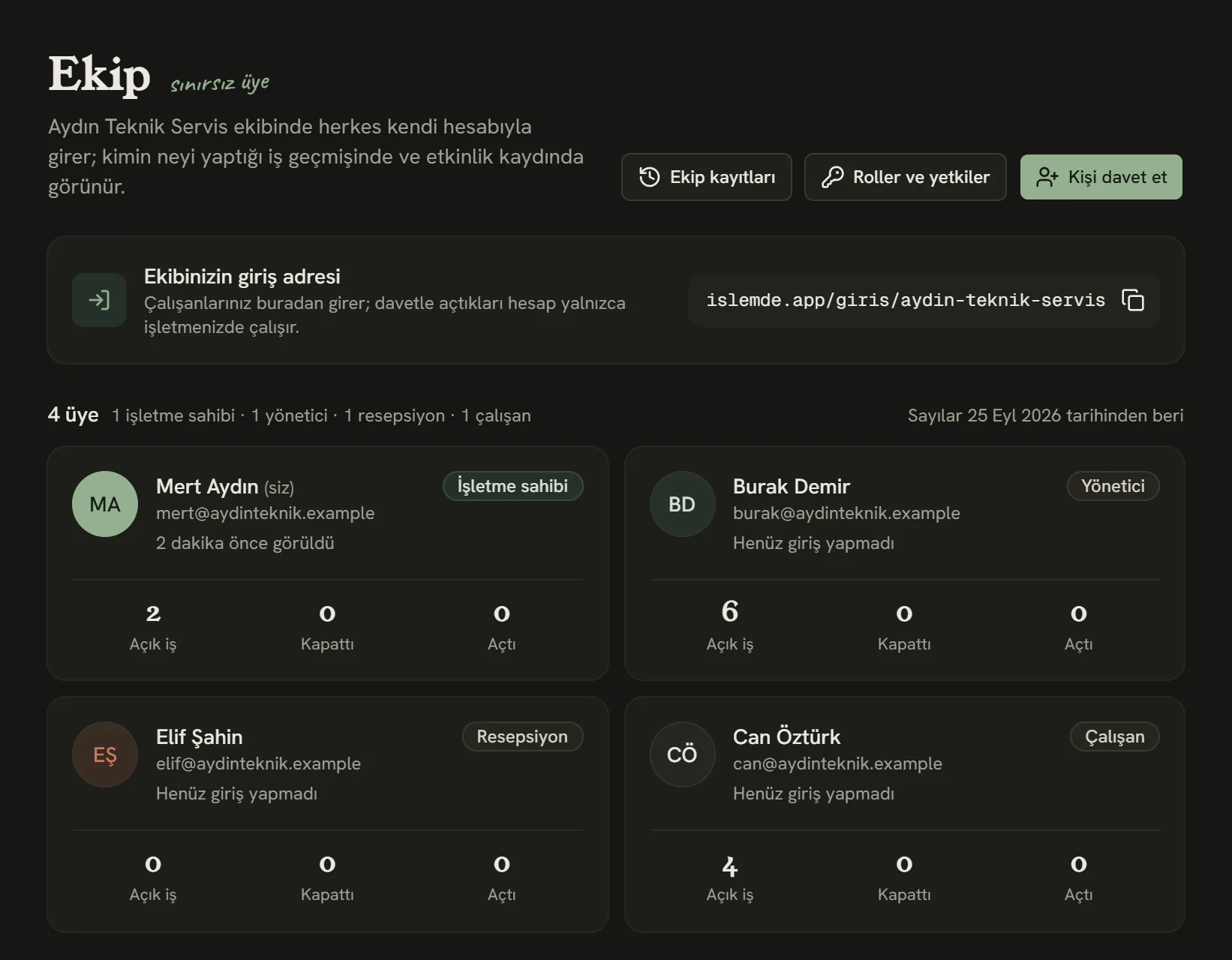
- Invite someone new.
- Your team's sign-in address. Your staff sign in only from here.
- Copy the address and share it with your team, or have them bookmark it in their browser.
Sending an invite
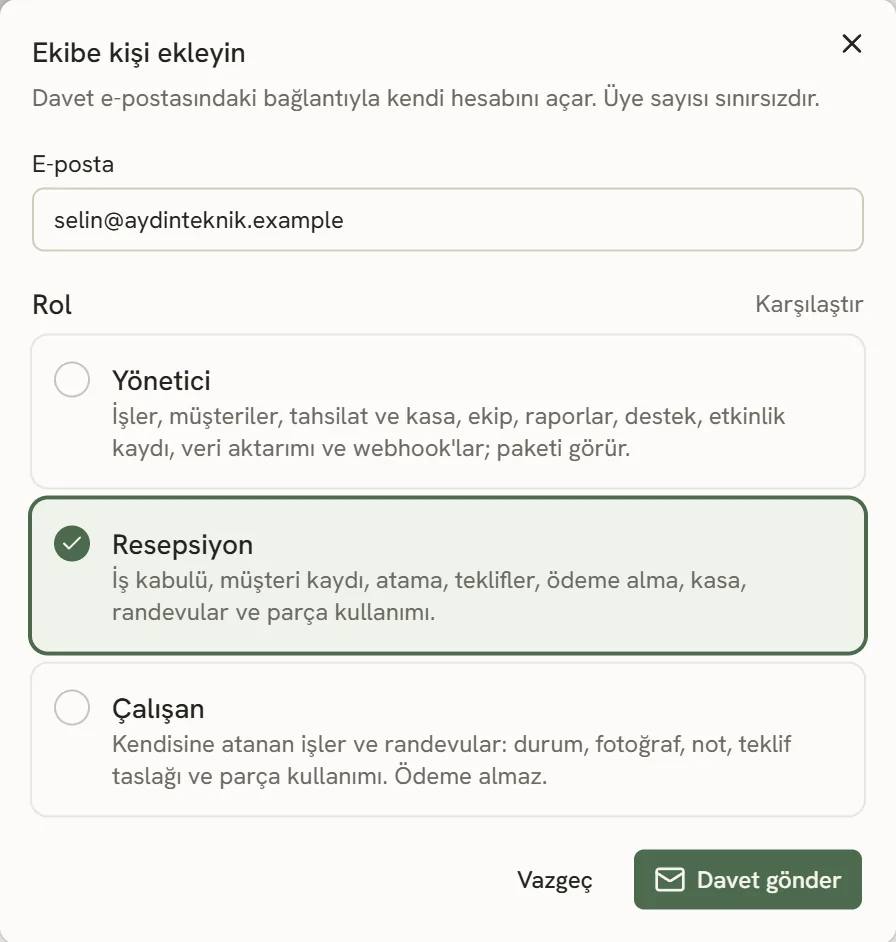
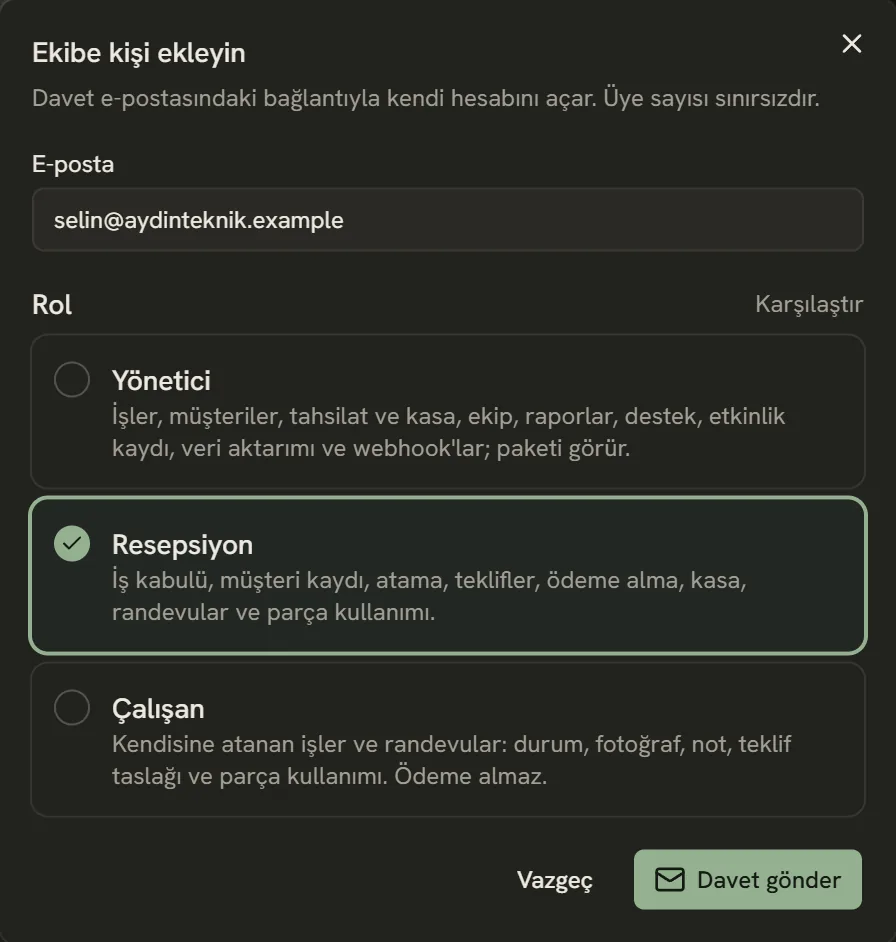
- The person's email address. The invite goes to this address and can only be used with it.
- Choose a role.
- See side by side what each role can do.
- Send the invite.
The invited person clicks the link in the email and enters their name and a password; their account is created and they go straight into your business. From then on they use your team's sign-in address every time:
https://islemde.app/giris/your-business-nameIf you've connected your own domain, the same page also opens at track.yourcompany.com/giris.
Roles
| Role | What they can do |
|---|---|
| Business owner | Access to everything: billing, settings and the team. |
| Manager | Jobs, customers, team, reports, payments and the cash desk, support, the activity log, data import and export, and webhooks; can see the plan. Can cancel a payment entered by mistake. Only the business owner creates API keys. |
| Front desk | Job intake, customer records, assignments, quotes, taking payments and the cash desk. Can't cancel a payment record. |
| Employee | Jobs assigned to them: status, photos, notes and draft quotes. Doesn't see other people's jobs, team details or payments; doesn't take payments. |
To change someone's role or remove them from the team, click their card on the Team page.
If the invite email hasn't arrived, ask them to check their spam folder. If it still doesn't arrive within a few minutes, resend the invite from the Team page.
Who did what?
The business owner and managers can open the Activity log page, under Team in the left menu. All changes to jobs, the team, payments and settings are listed day by day, along with who made them. You can filter by person or type, and click a row to see its details.
Protect your account
Click your name at the bottom left and go to the My account page. With Two-step verification turned on, signing in asks for a code from the authenticator app on your phone (such as Google Authenticator or Microsoft Authenticator) in addition to your password.
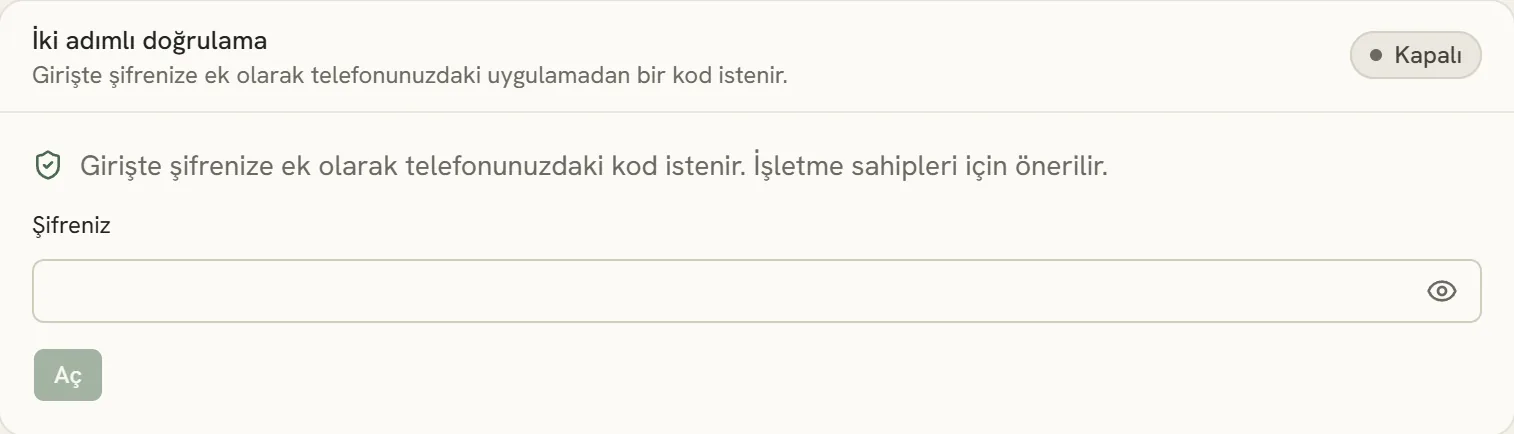
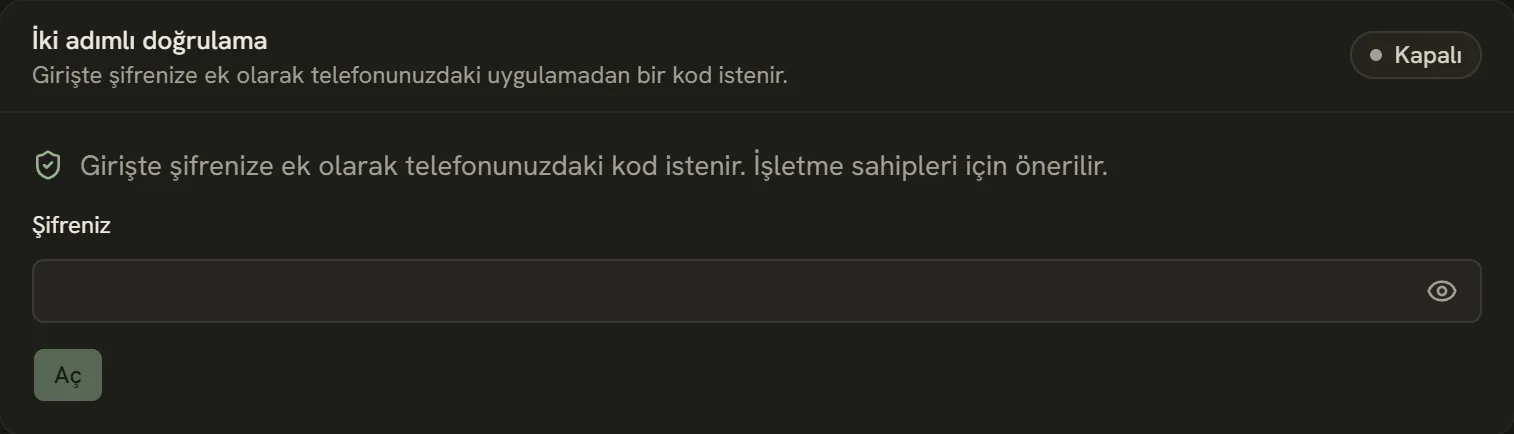
- Its current status.
- Enter your password to turn it on.
- Scan the QR code with your phone and enter the code the app gives you.
Recommended for business owners. When you turn it on, you're signed out on your other devices; sign in there again with a code.
Stuck somewhere? Write to us from Support in the dashboard's left menu; we'll see which screen you're on.