Automatic SMS
Connect your own SMS provider account so customers get an SMS when their device is checked in, when a quote is sent and when the device is ready. Plus reminders for forgotten devices, quotes and warranties.
SMS messages go out through your account with your SMS provider, under your approved sender ID (your sender name). You pay your SMS provider directly; İşlemde adds nothing on top.
Before you start
You need an account and an approved SMS sender ID with Netgsm, iletiMerkezi, Verimor or Mutlucell. If you don't have one, open an account with one of these providers and get your sender ID approved; approval can take a few days.
Connecting the account
Open the Settings → Customer messaging → SMS connection page.
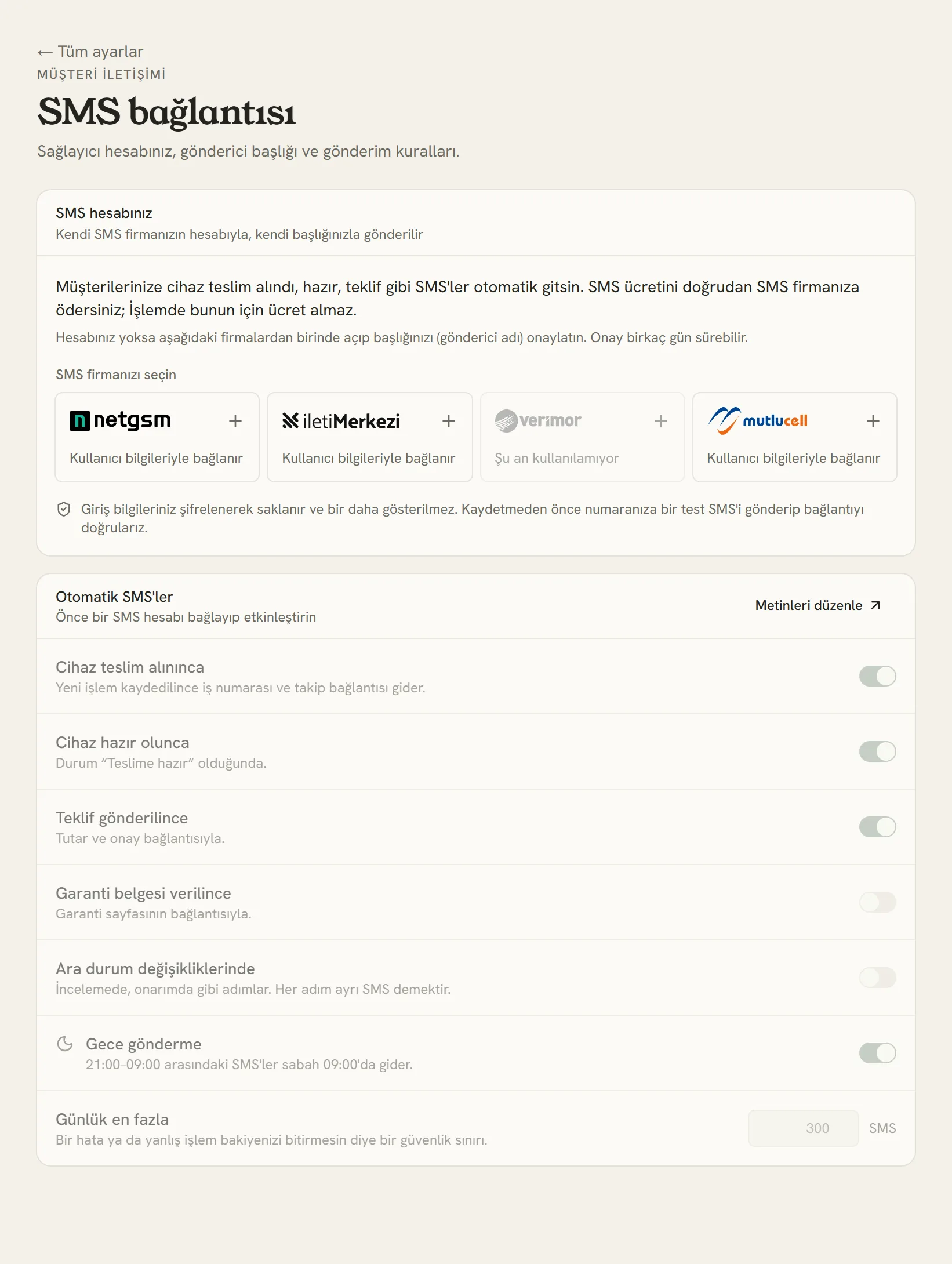
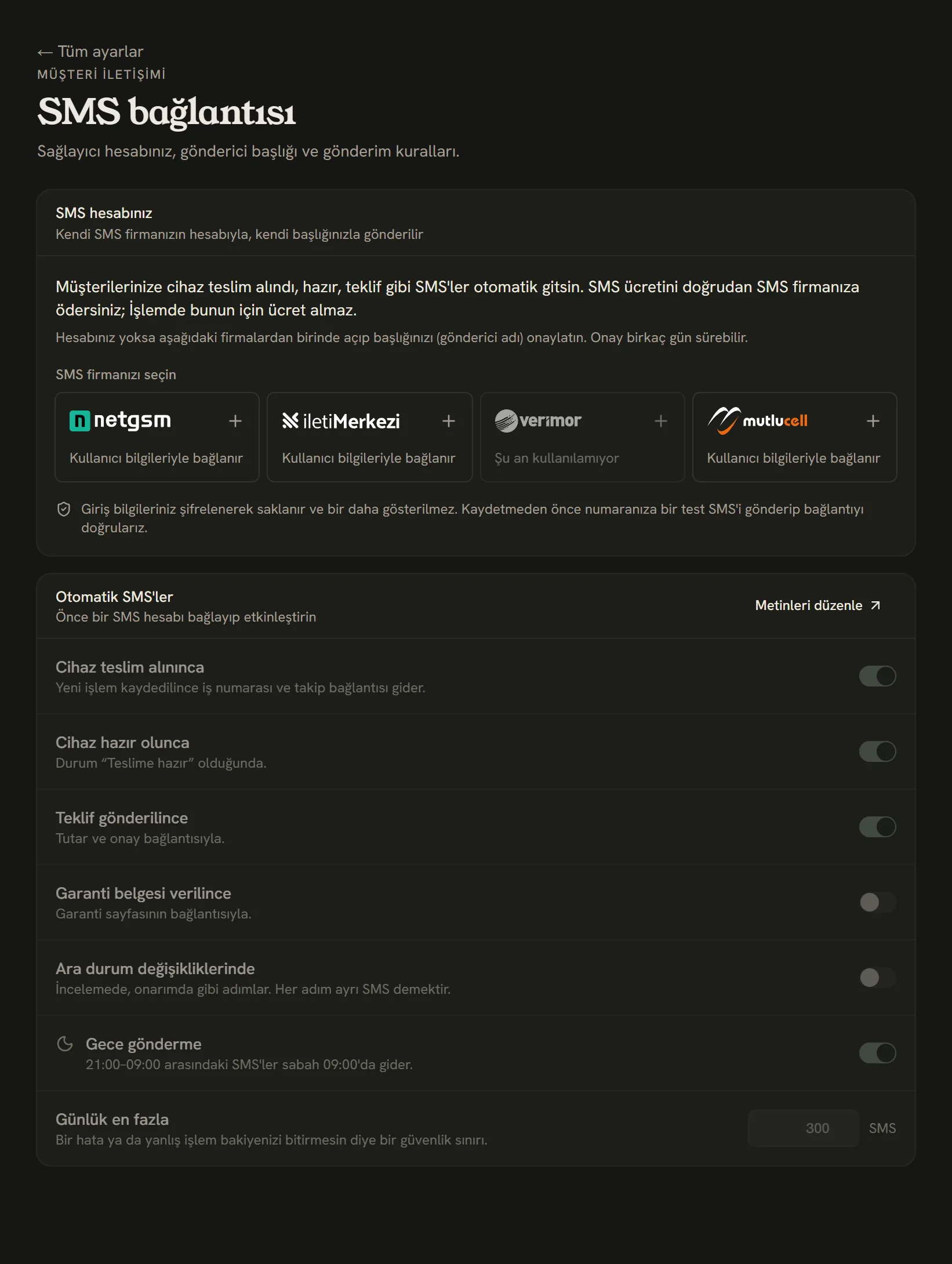
- Choose your SMS provider and enter the API details from your provider's panel.
- When SMS messages are sent. Each one turns on and off separately.
- Edit the SMS texts in your own words (SMS texts page).
- SMS messages written at night go out at 09:00 in the morning.
- Choose your provider and enter your user details. If you can, create a separate user in the provider's panel with SMS permission only.
- Before saving, send a test SMS to your own number.
- If the test arrives, save and turn it on.
Your sign-in details are stored encrypted and never shown again.
Which SMS messages are sent?
| Event | When |
|---|---|
| Device checked in | When a new job is saved; with the job number and tracking link. |
| Quote sent | With the amount and the approval link. If WhatsApp is connected, WhatsApp is tried first. |
| Device ready | When the status becomes "Ready for pickup". If WhatsApp is connected, WhatsApp is tried first. |
| Warranty certificate issued | With the link to the warranty page. |
| In-between statuses | Steps like Diagnosing or In repair. Each step means a separate SMS. |
So that a mistake or a wrong action doesn't use up your balance, there's a daily maximum; the default is 300. You can flag a customer who says they don't want SMS messages on their customer page.
Every SMS sent and its status are listed on the SMS history page. You'll find the texts and test sending on the SMS texts page.
If you've also connected your WhatsApp number, device-ready, quote, payment and appointment notifications are tried on WhatsApp first; if that doesn't get through, the same message goes by SMS, and the customer never gets both. Details: Automatic notifications and SMS fallback.
Reminders and review requests
From the Settings → Customer messaging → Reminders page, İşlemde automatically reminds customers about things they've forgotten. They all start off; you turn each one on separately and set how long to wait yourself.
| Reminder | When |
|---|---|
| Ready device not collected | After the job has been "Ready for pickup" for the number of days you choose (default 3 days). If the job leaves ready and becomes ready again, once more. |
| Quote not answered | When the number of days you choose has passed without the sent quote being approved or declined (default 2 days). Not sent for an expired quote. |
| Warranty about to end | The number of days you choose before the warranty ends (default 14 days). |
| Review request after handover | The number of hours you choose after the job is handed over (default 24 hours), with your Google review link. |
Each reminder goes out only once for the same thing. A review request goes to the same customer at most once every 90 days; if the job is moved back from "Handed over" or cancelled, it's never sent.
For review requests, enter your Google review link. You can copy it from the "Ask for reviews" button in your Google Business Profile (it starts like https://g.page/r/…).
Reminders go out only between 10:00 and 20:00; any that fall due at other times wait until the next morning.
If your SMS account is connected, reminders go by SMS, and you can edit their texts with the SMS text button. If you don't have an SMS account, or the customer has no mobile number on file, they go by email to customers with an email address on file. Those sent by SMS appear in the job's SMS list; those sent by email appear in the job's history.
Stuck somewhere? Write to us from Support in the dashboard's left menu; we'll see which screen you're on.