Receipt and print settings
Choose the intake receipt's title, paper size and what's printed on it. Receipt printers (80 mm) and A4 are supported.
Open Settings → Printing. Every change you make shows in the preview, with your own business details.
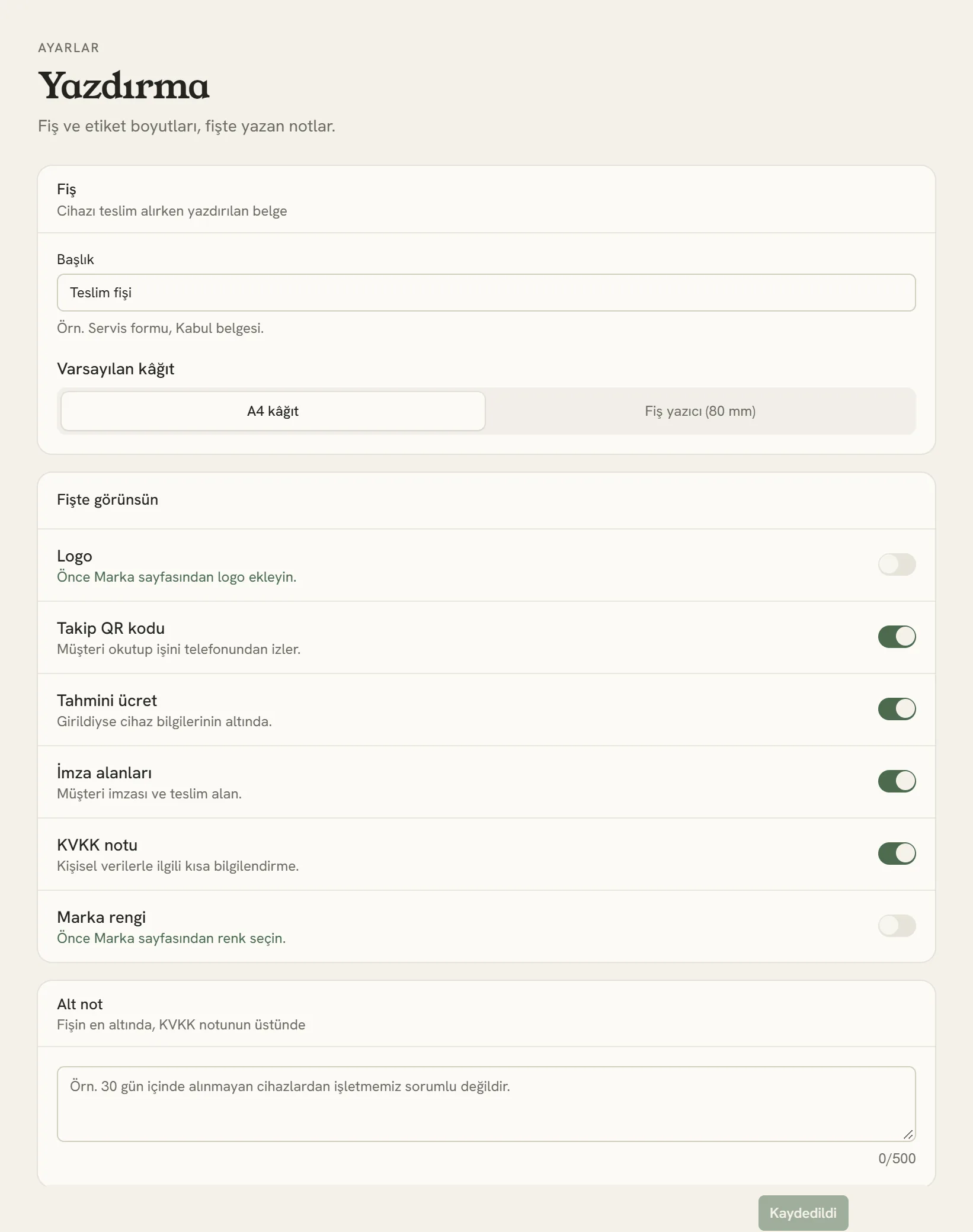
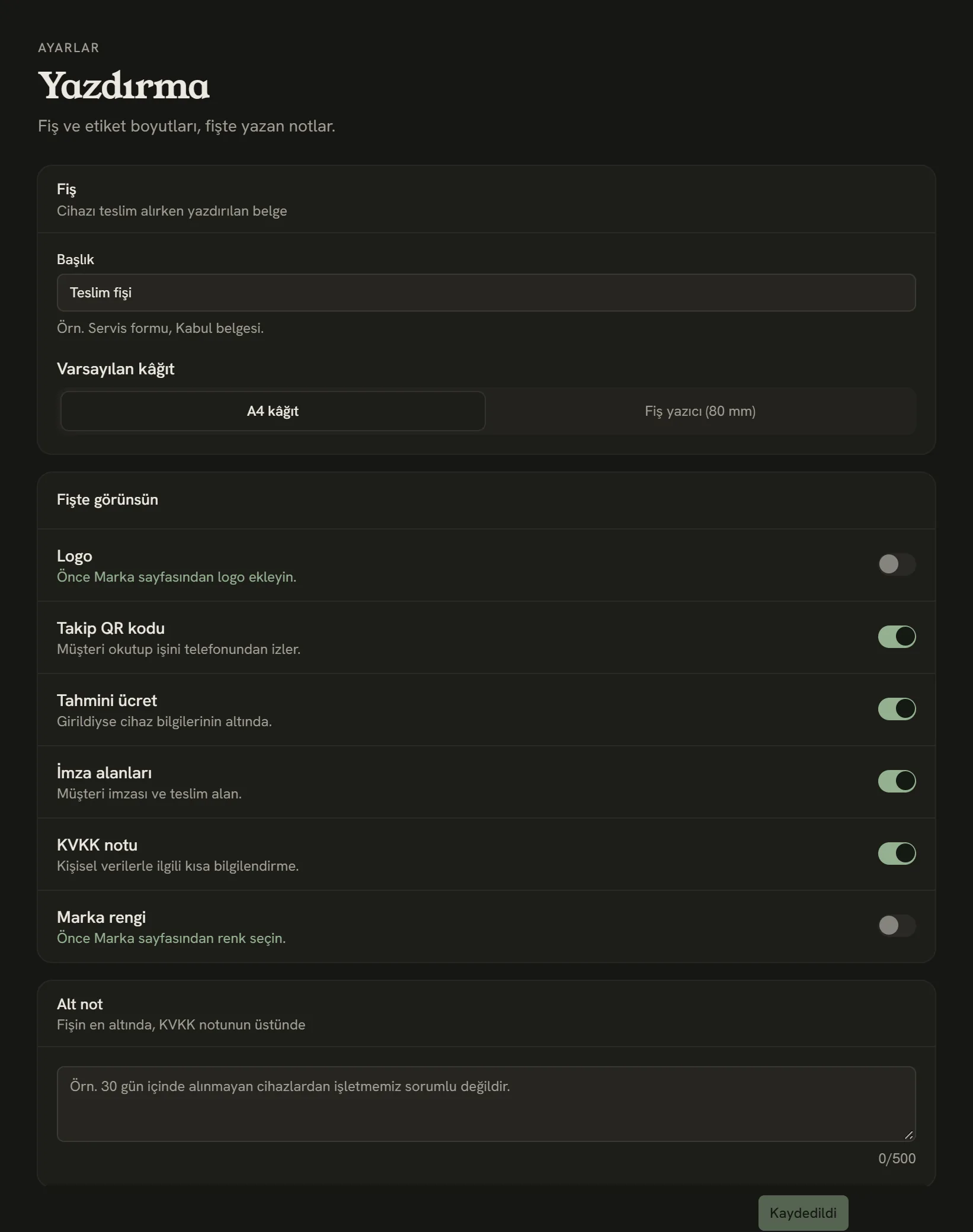
- The receipt's title. You can also use "Service form" or "Intake form".
- Default paper: A4 or an 80 mm receipt printer.
- What appears on the receipt: logo, tracking QR code, estimated price, signature fields, KVKK notice, brand color.
- Footer note. For example, your policy on devices that aren't collected.
The preview below the form shows how the receipt will look on paper:
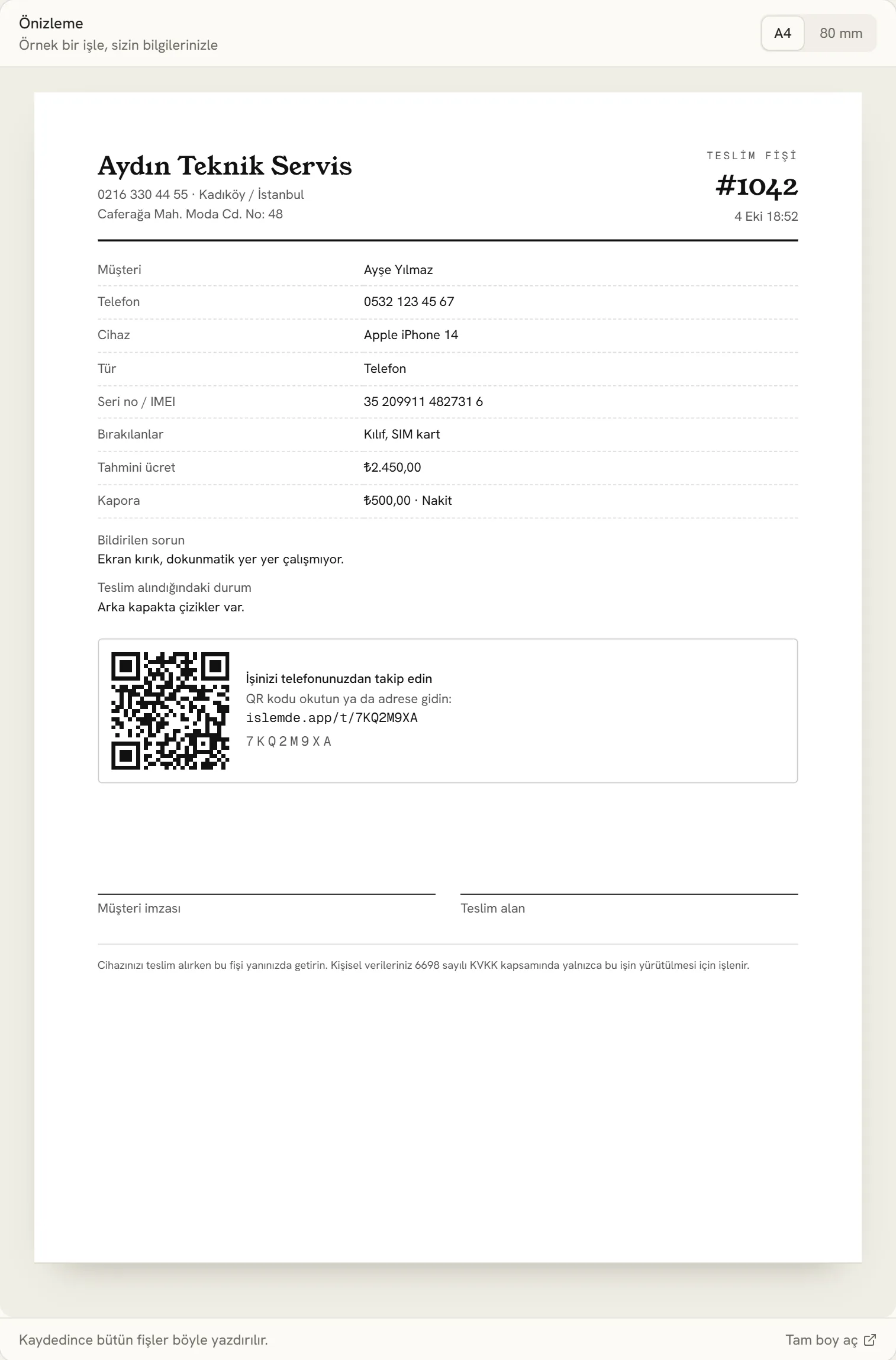
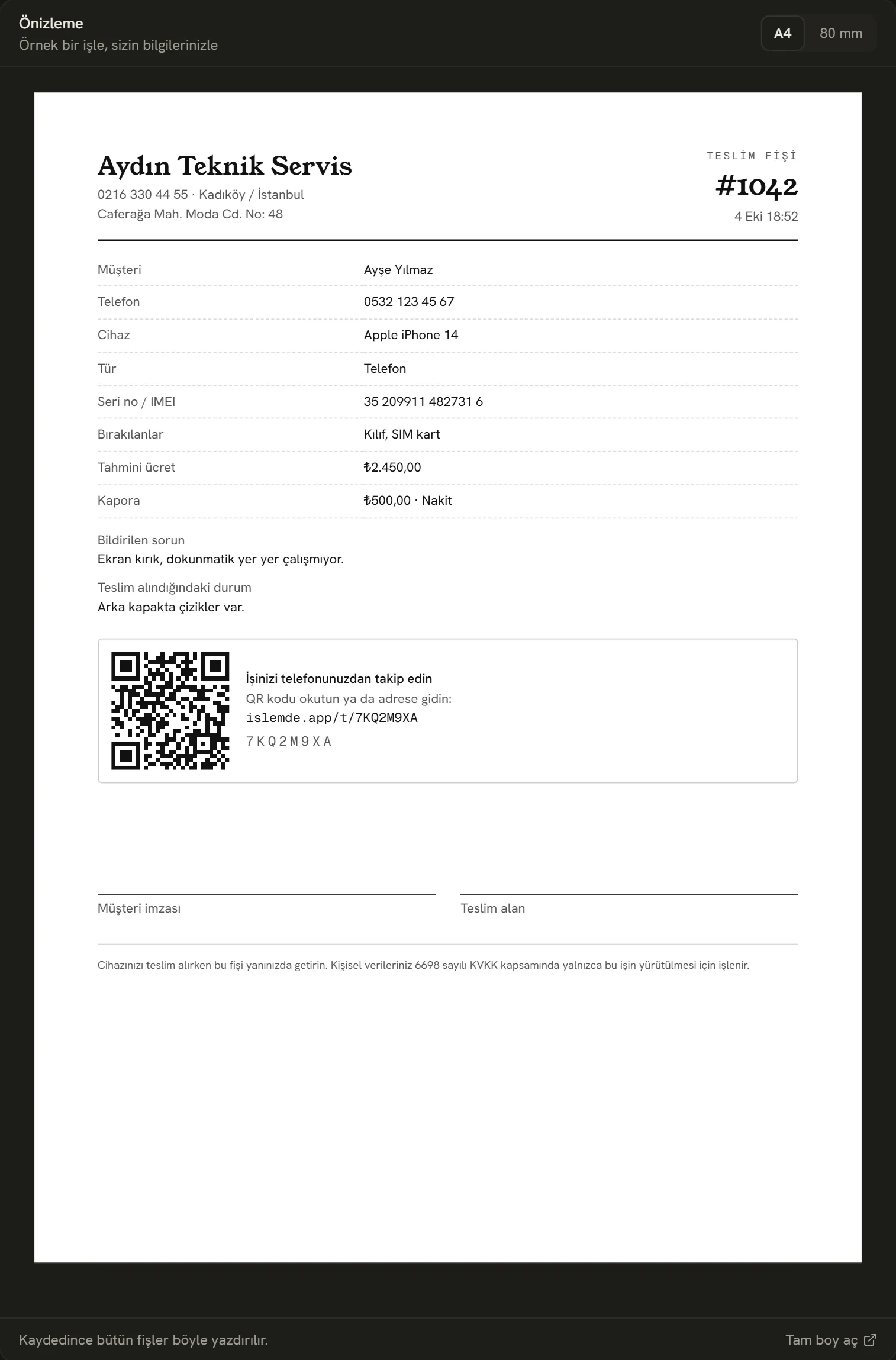
- Switch between A4 and 80 mm and check both.
- Open the preview full size.
For the logo and brand color, first upload your logo and choose your color under Settings → Branding.
When printing
On the job page, choose Print intake receipt from the ⋯ menu at the top right. Your browser's print window opens:
- On a receipt printer, choose your printer's 80 mm setting as the paper size and set margins to "None".
- On A4, the scale should be 100%. The receipt is laid out to fit the page.
- If you don't need paper, choose "Save as PDF" as the destination and send it to the customer.
Stuck somewhere? Write to us from Support in the dashboard's left menu; we'll see which screen you're on.