Sending a quote and getting approval
Enter parts and labor, then send it as a link. The customer reviews it on their phone, verifies themselves with the last 4 digits of their phone number and approves with a signature.
You've looked at the device and you know what needs doing. Instead of giving the price over the phone, send a written quote: the customer sees every line, and their approval is recorded with their signature.
Preparing the quote
On the job page, switch to the Quote tab.
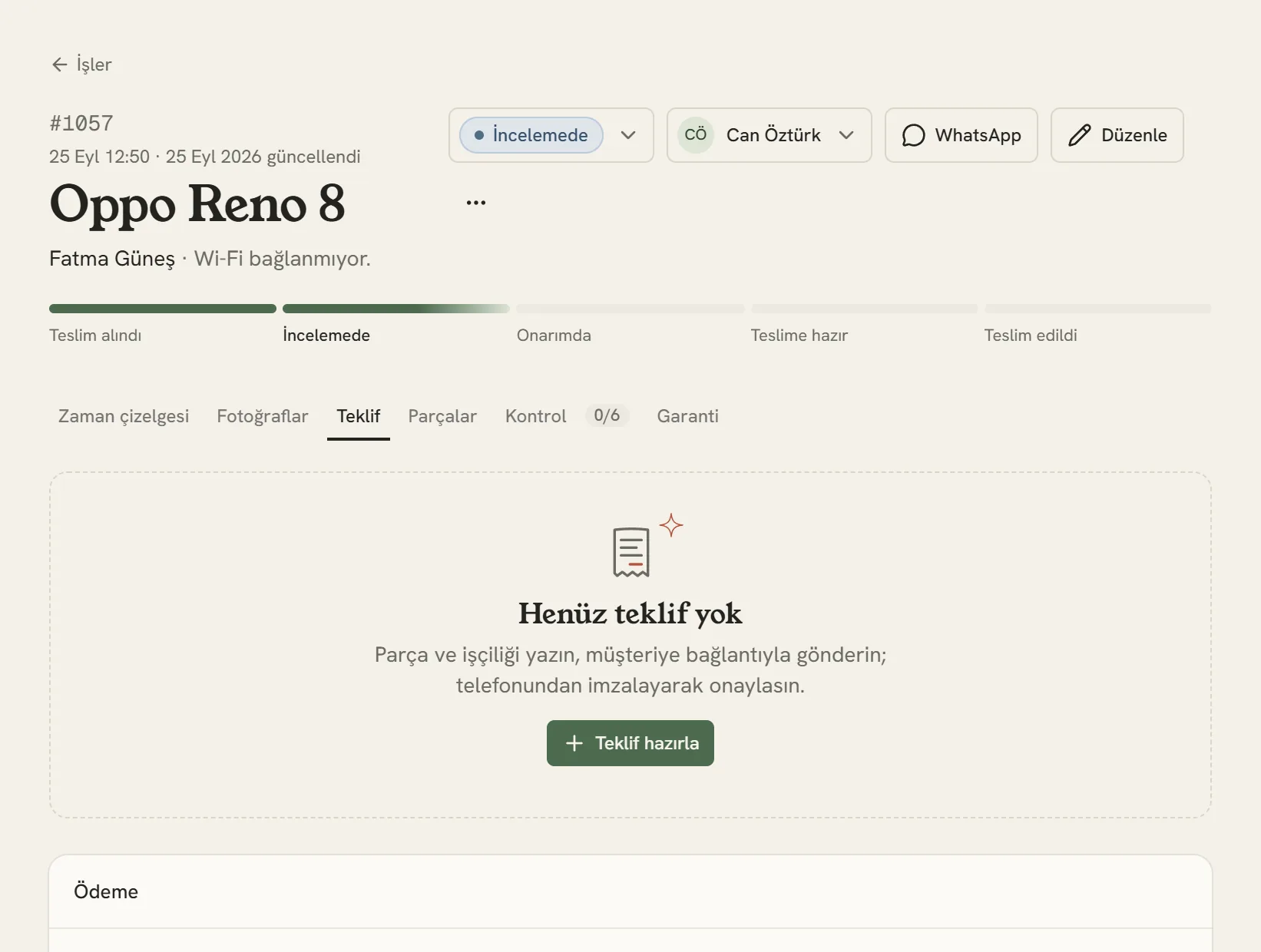
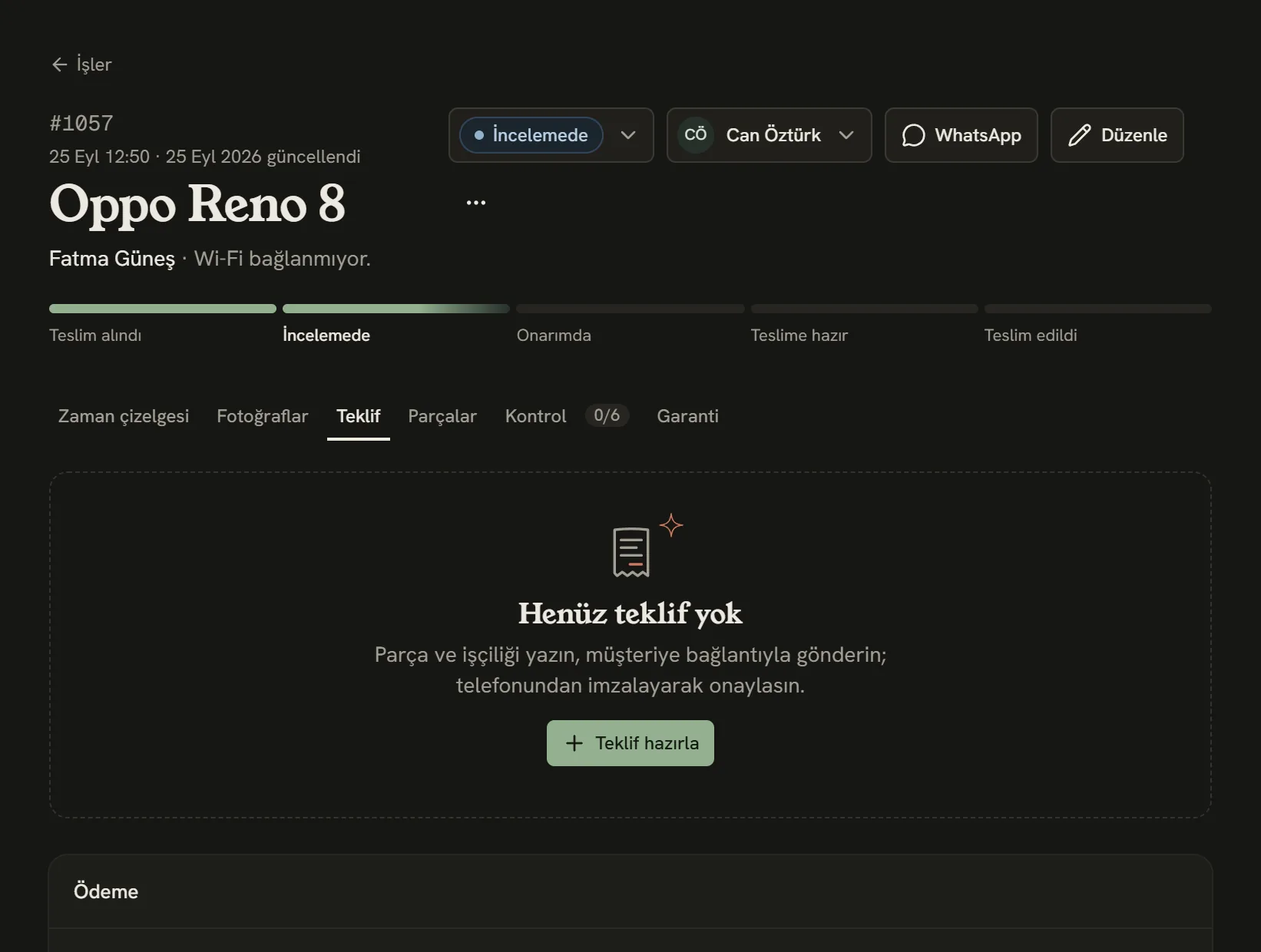
- Quote tab
- Prepare a new quote.
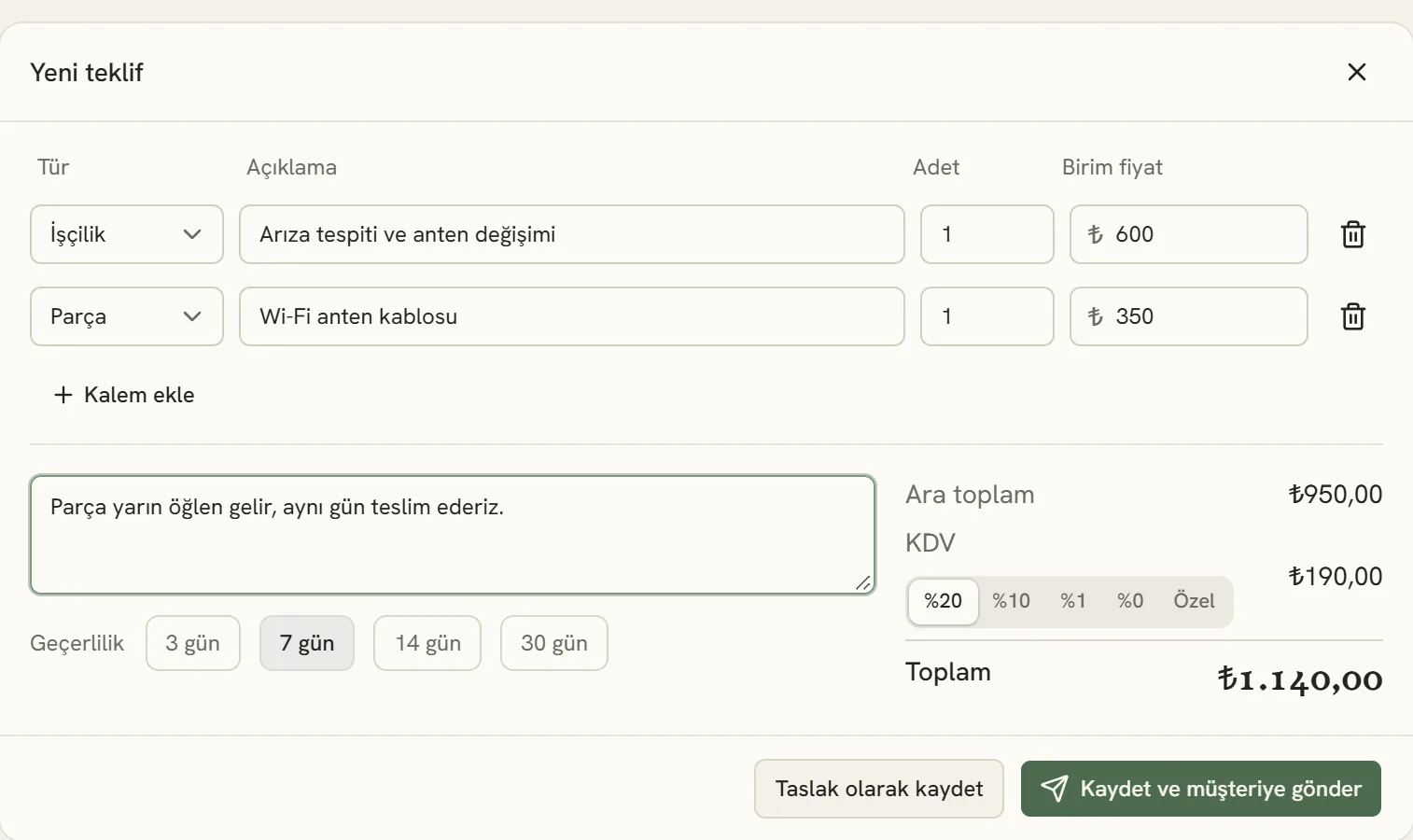
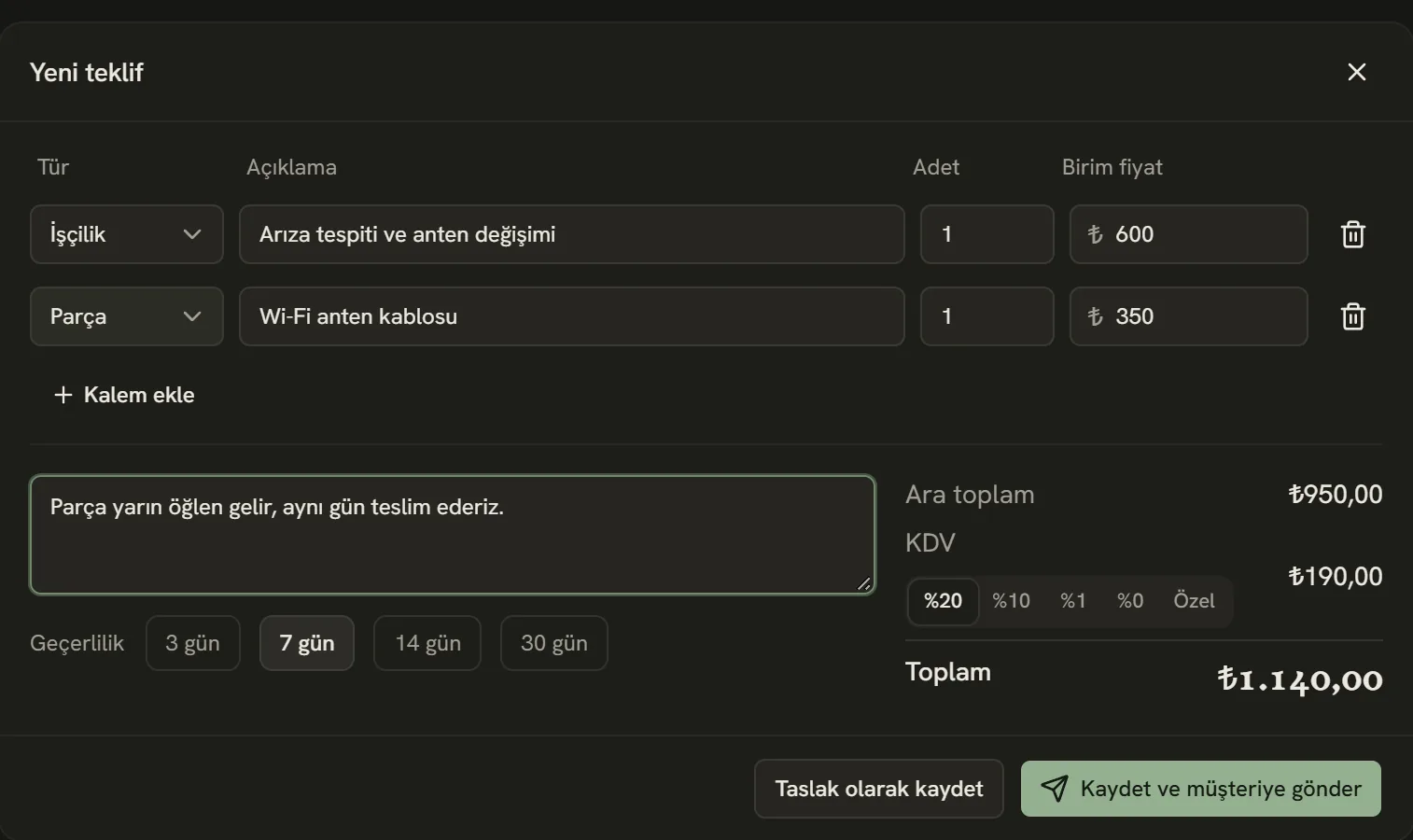
- Each line is a part or labor: type, description, quantity and unit price.
- Add a line.
- VAT rate. You can change the default rate under Settings → Business details.
- How long the quote stays valid.
- Save and send it to the customer.
The note you write to the customer appears below the lines on the quote page. It's a good place for things like when the part will arrive or what the warranty covers.
How does the customer see the quote?
The quote goes to the customer by email, and by SMS if your SMS account is connected. If you've connected your WhatsApp number and the customer has given permission, WhatsApp is tried first; if it doesn't get through, it goes by SMS. You can also send the quote message from your own phone with the WhatsApp button on the job page; you change its text on the Ready-made WhatsApp messages page.
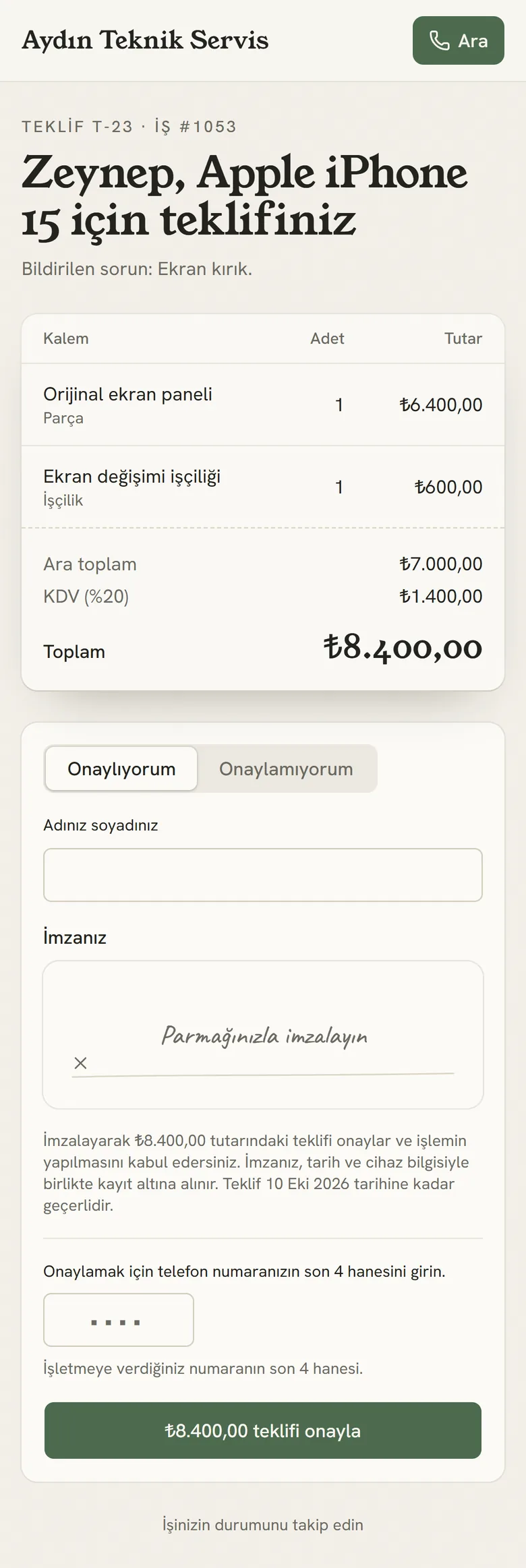
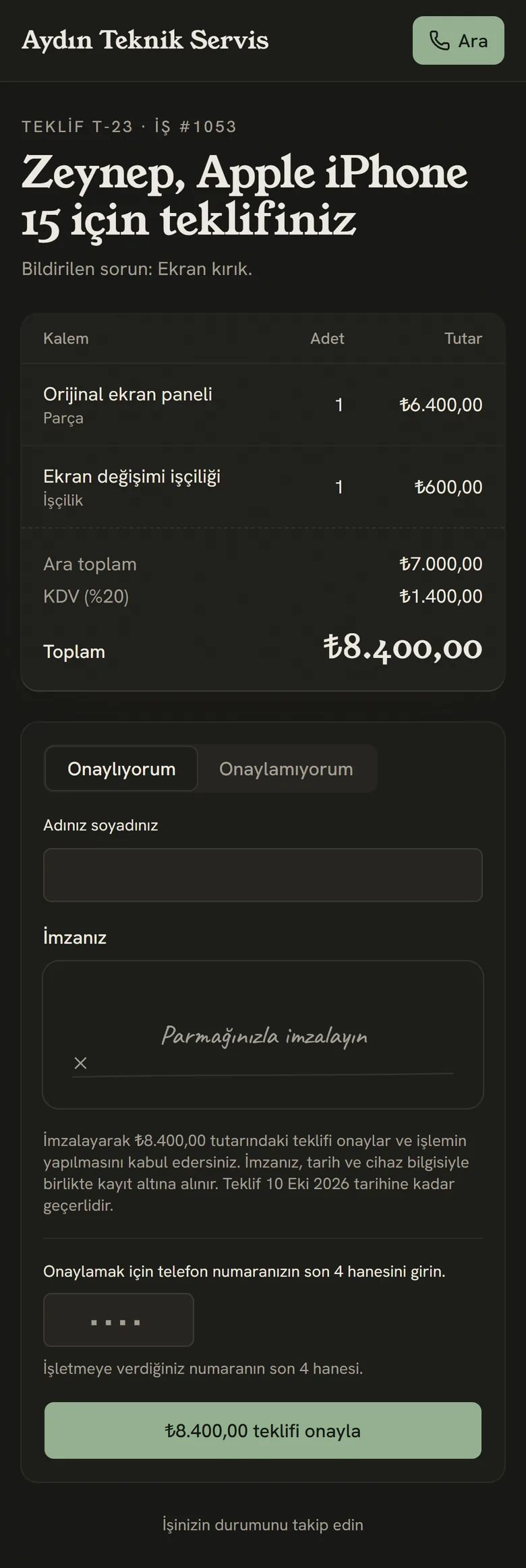
- Lines, VAT and total.
- Approve or decline.
- They type their name and sign with a finger.
- They enter the last 4 digits of the phone number they gave you.
- The approval is recorded with the signature and the time.
Both approving and declining ask for the last 4 digits of the phone number. That way, someone else who sees the tracking code on the receipt can't approve the quote. If the digits are entered wrong several times in a row, attempts from that device are paused for a while and you're notified on the dashboard; the customer can call you in the meantime.
If the customer has no phone number on file, they can see the quote but can't approve it online; the page asks them to call you. Don't forget to enter the phone number at intake. For the sample job's quote, enter
0000.
After approval
- When the customer approves, the job automatically moves to In repair and an "approved the quote" line is added to the timeline.
- If they decline, the reason they gave appears on the job page. You can prepare a new quote and send it again.
- You can see all your quotes, with their statuses, on the Quotes page in the left menu.
Stuck somewhere? Write to us from Support in the dashboard's left menu; we'll see which screen you're on.