Automatic notifications and SMS fallback
Device-ready, quote, payment and appointment notifications are tried on WhatsApp first; if they don't arrive, the same message goes by SMS. The customer never gets both.
If your WhatsApp and SMS accounts are connected, İşlemde picks a single channel for each notification. The customer gets the message once: either on WhatsApp or by SMS.
Which notifications go out?
| Notification | When | Channel |
|---|---|---|
| Job ready for pickup | When the status becomes "Ready for pickup". | WhatsApp, otherwise SMS |
| Quote and approval link | When you send the quote to the customer. | WhatsApp, otherwise SMS |
| Payment reminder | When you tap Send payment reminder on the Payment card on the job page. | WhatsApp, otherwise SMS |
| Appointment reminder | 24 hours before an appointment with a customer selected. | WhatsApp, otherwise SMS |
| Device checked in, warranty certificate, in-between statuses | When it happens. | SMS only |
You choose which events send a message in the Automatic SMS list on Settings → Customer messaging → SMS connection. If When the device is ready or When a quote is sent is off, that notification doesn't go out on WhatsApp either. If Don't send at night is on, messages written at night wait until morning on WhatsApp too. Email notifications have their own setting, on the Email page.
If the status is set to "Ready for pickup" by mistake, there's a minute and a half wait so you can undo it; if you undo it within that time, nothing is sent.
WhatsApp or SMS?
A notification goes out on WhatsApp if:
- WhatsApp is connected and turned on,
- Meta has approved that notification's text,
- the customer has agreed to get updates on WhatsApp and their mobile number is saved.
If any of these is missing, the message goes straight by SMS. If a message sent on WhatsApp doesn't reach the customer's phone within half an hour, or WhatsApp doesn't accept the message, the same message then goes by SMS. If it arrived, no SMS is sent at all.
If your SMS account isn't connected, no fallback message can go to a customer WhatsApp can't reach. Connecting both is the safest option.
Which notification goes out where?
On the Connection tab of Settings → Customer messaging → WhatsApp, the Automatic notifications list sits below your number.
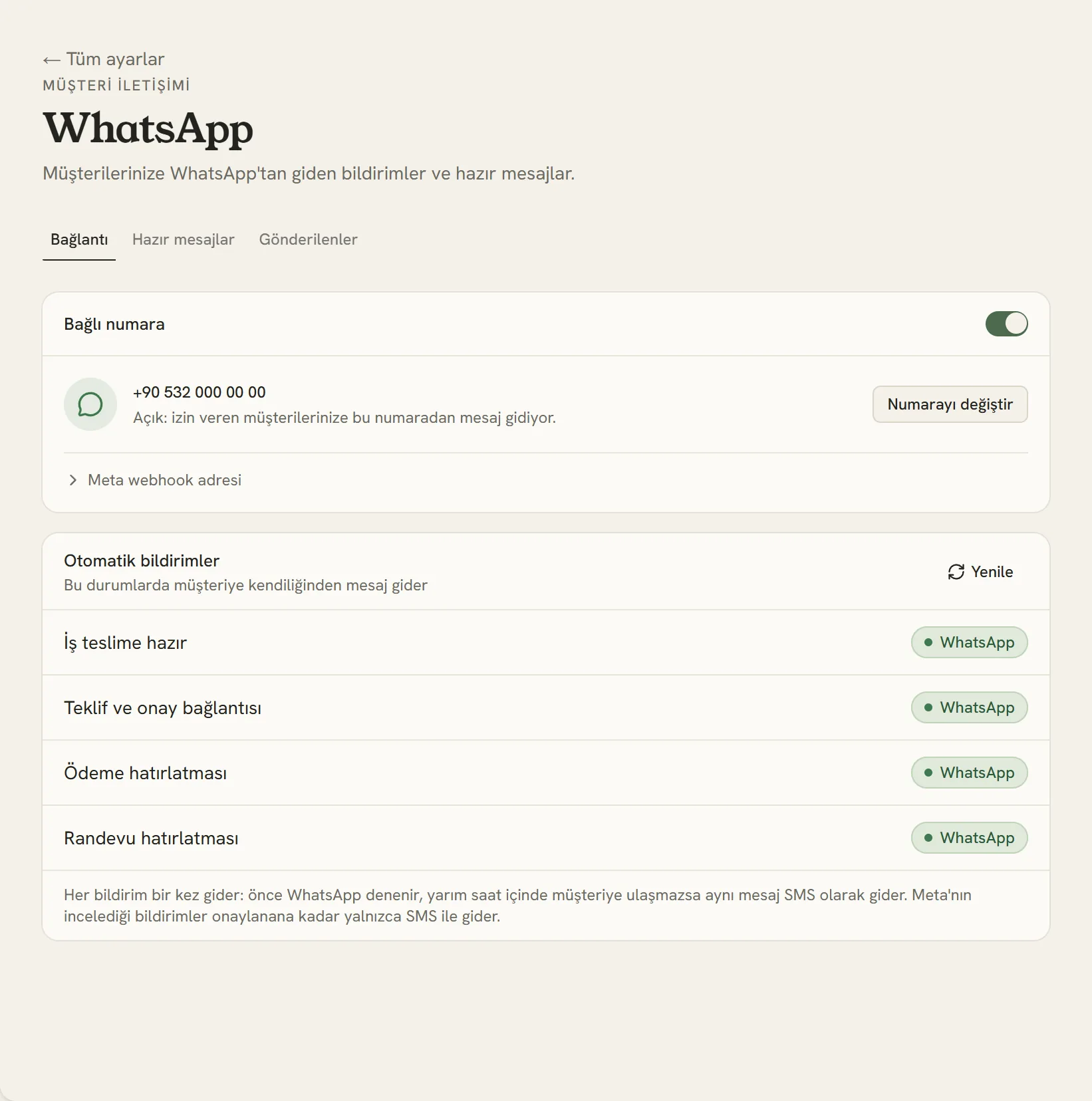
- If you turn this off, notifications go by SMS only.
- Which channel each notification currently goes out on.
- Checks the approval statuses at Meta again.
| Label | Meaning |
|---|---|
| Meta approved it; it goes on WhatsApp to customers who have agreed. | |
| Meta is reviewing · SMS for now | The text is waiting for Meta's approval. Once approved, it switches to WhatsApp by itself. |
| Meta didn't approve · SMS | Meta didn't accept the text; this notification goes by SMS. Write to Support. |
| Couldn't be prepared · SMS | The text couldn't be sent to Meta. Tap Refresh; if that doesn't fix it, write to Support. |
The Sent tab shows every message sent on WhatsApp and its status: queued, sent, delivered, read or not delivered. If your SMS account is connected, the undelivered ones went out by SMS; you'll find them on the SMS history page.
If the customer stops notifications
A customer who taps the Stop notifications button under WhatsApp messages won't get notifications on WhatsApp again; queued and later notifications go by SMS. If the customer doesn't want SMS either, mark on the customer page that they don't want to receive SMS.
If the customer agrees again later, turn on the WhatsApp messages switch on the customer page.
To connect your SMS account and for SMS texts: Automatic SMS. To connect WhatsApp: Connecting WhatsApp.
Stuck somewhere? Write to us from Support in the dashboard's left menu; we'll see which screen you're on.