Opening your first job
When a device lands on the counter, record the customer, the device and the problem in a minute; the intake receipt gets ready while you type.
Opening a job takes five short steps. Each step asks only what's needed at that moment; anything you leave blank you can fill in later from the job page.
The New job button
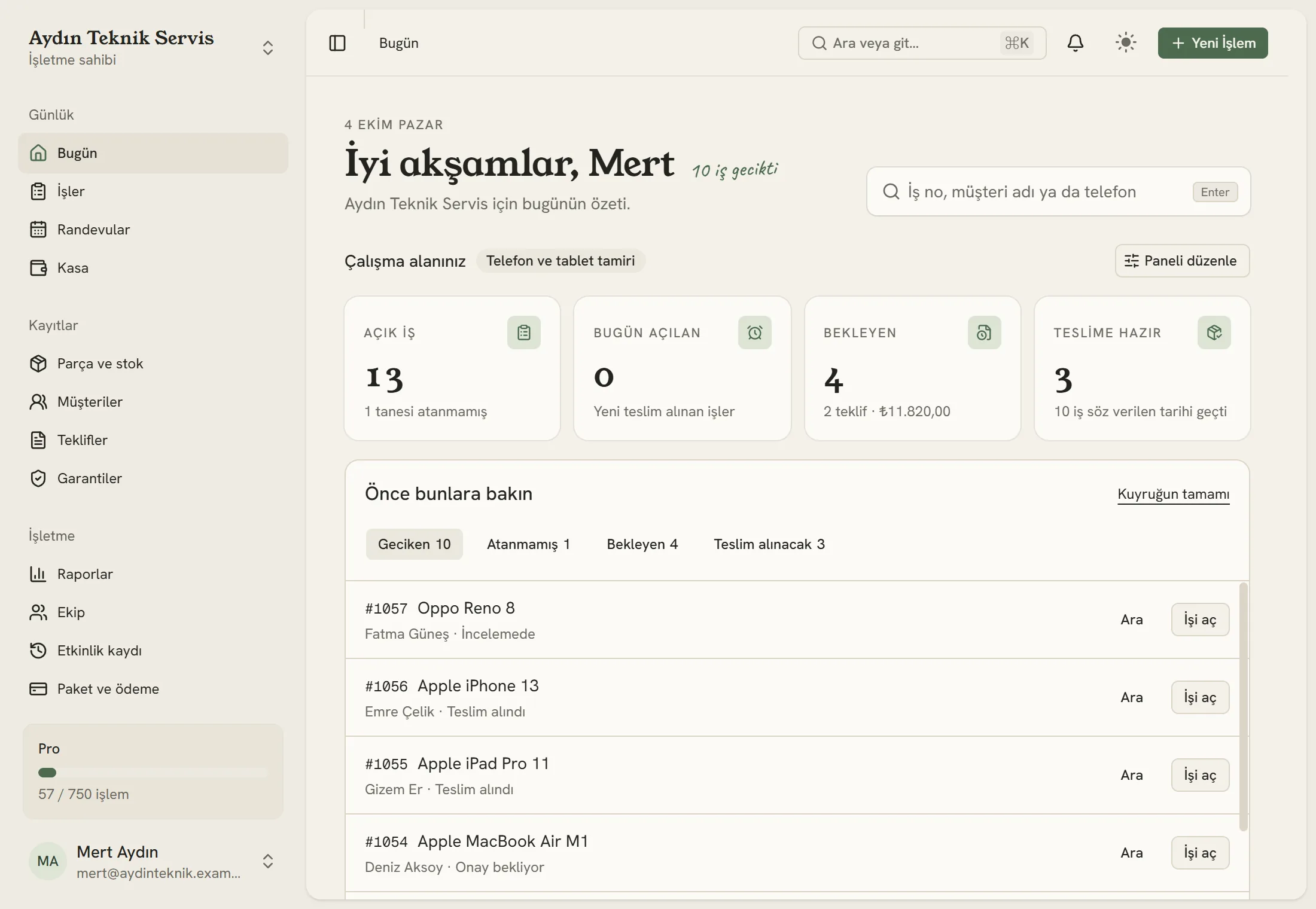
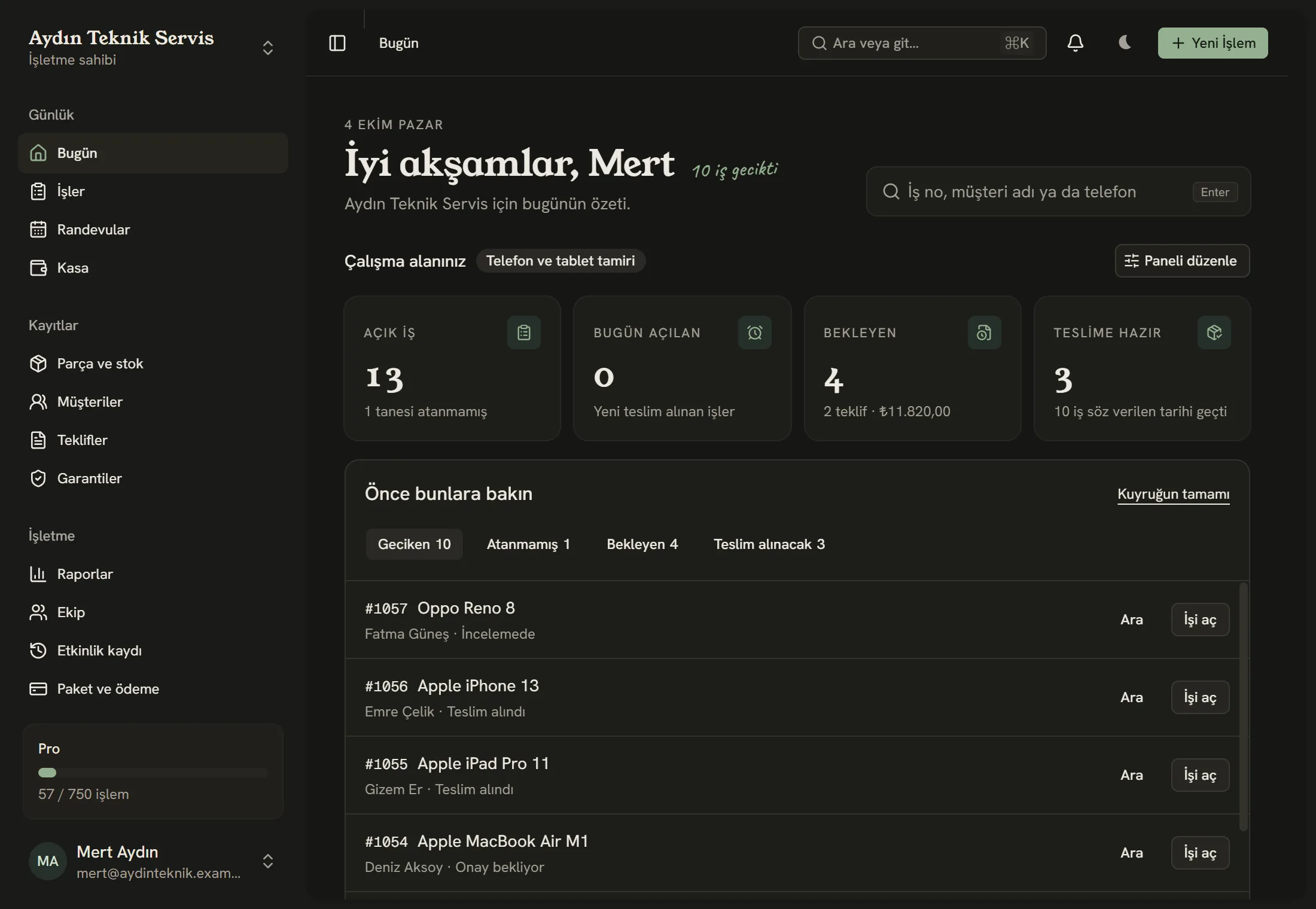
- It sits at the top right of every page. The N key on your keyboard opens the same thing.
- Find an open job by its number, the customer's name or their phone.
- Today's summary: open jobs, today's arrivals, jobs awaiting approval and jobs ready for pickup.
If you don't have any jobs yet, a Try it with a sample job button appears at the top of the dashboard. The sample job doesn't count against your job allowance, sends nothing to customers and can be deleted with one tap.
1. Customer
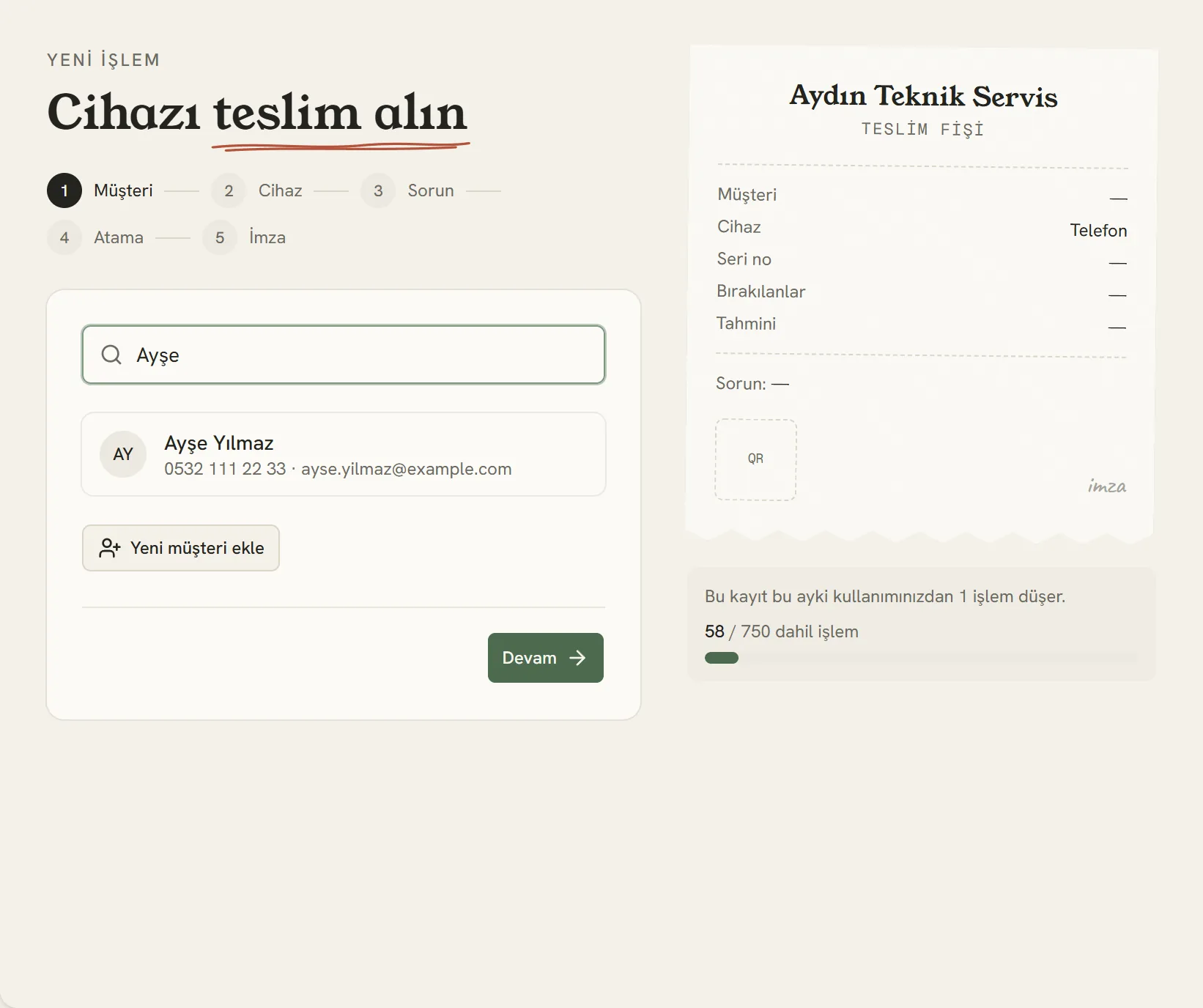
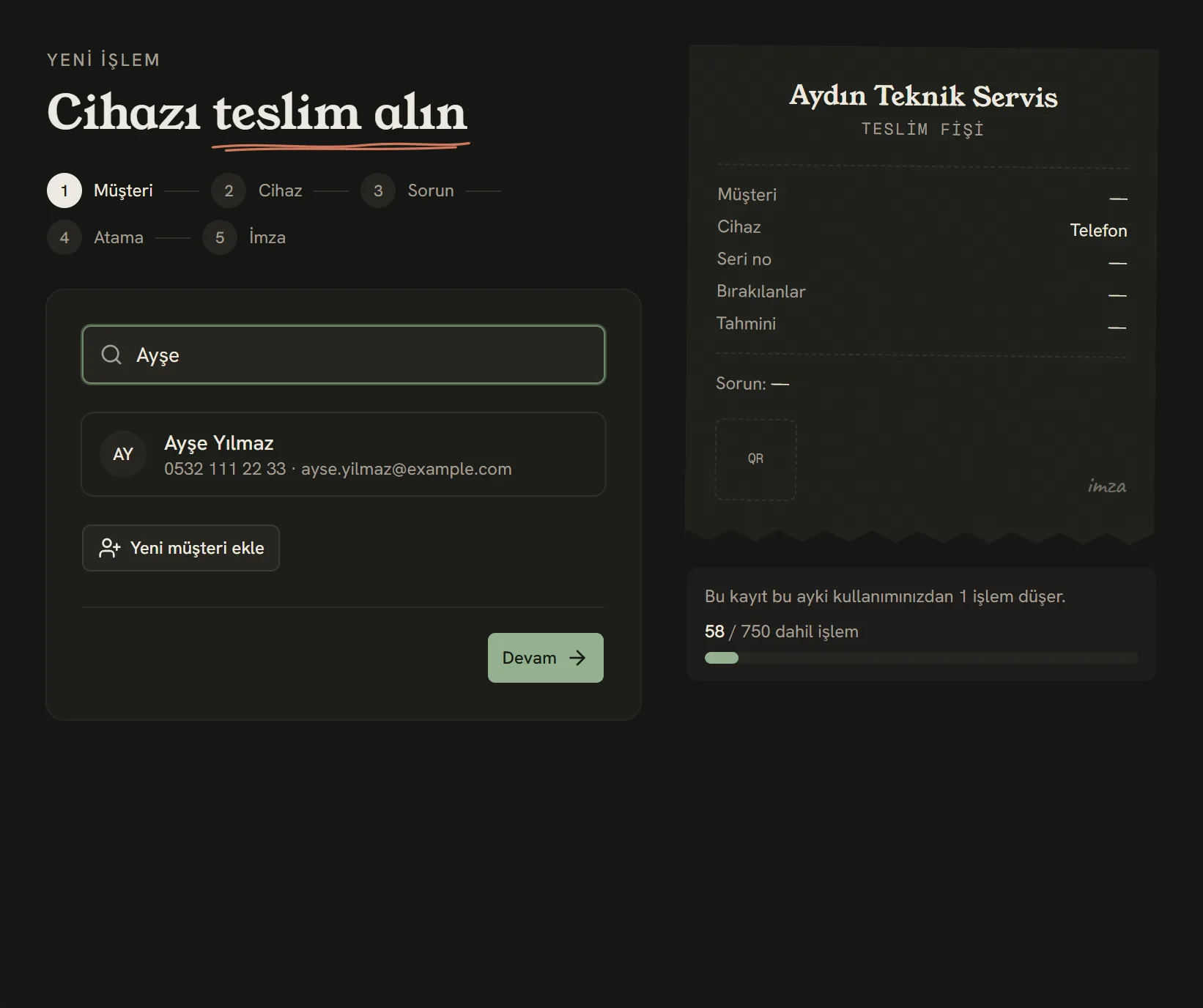
- Start typing their name, phone or email.
- Saved customers show up in the list; pick one and continue.
- If it's their first visit, add a new customer here.
The customer's phone number is all you need to send them the tracking link by WhatsApp or SMS. If you enter an email, status changes go out by email too.
If you've connected your WhatsApp number to İşlemde, this step also shows a Customer agreed to be notified on WhatsApp box. Tick it if the customer agrees; device-ready and quote notifications then reach them on WhatsApp. Details: Connecting WhatsApp.
2. Device
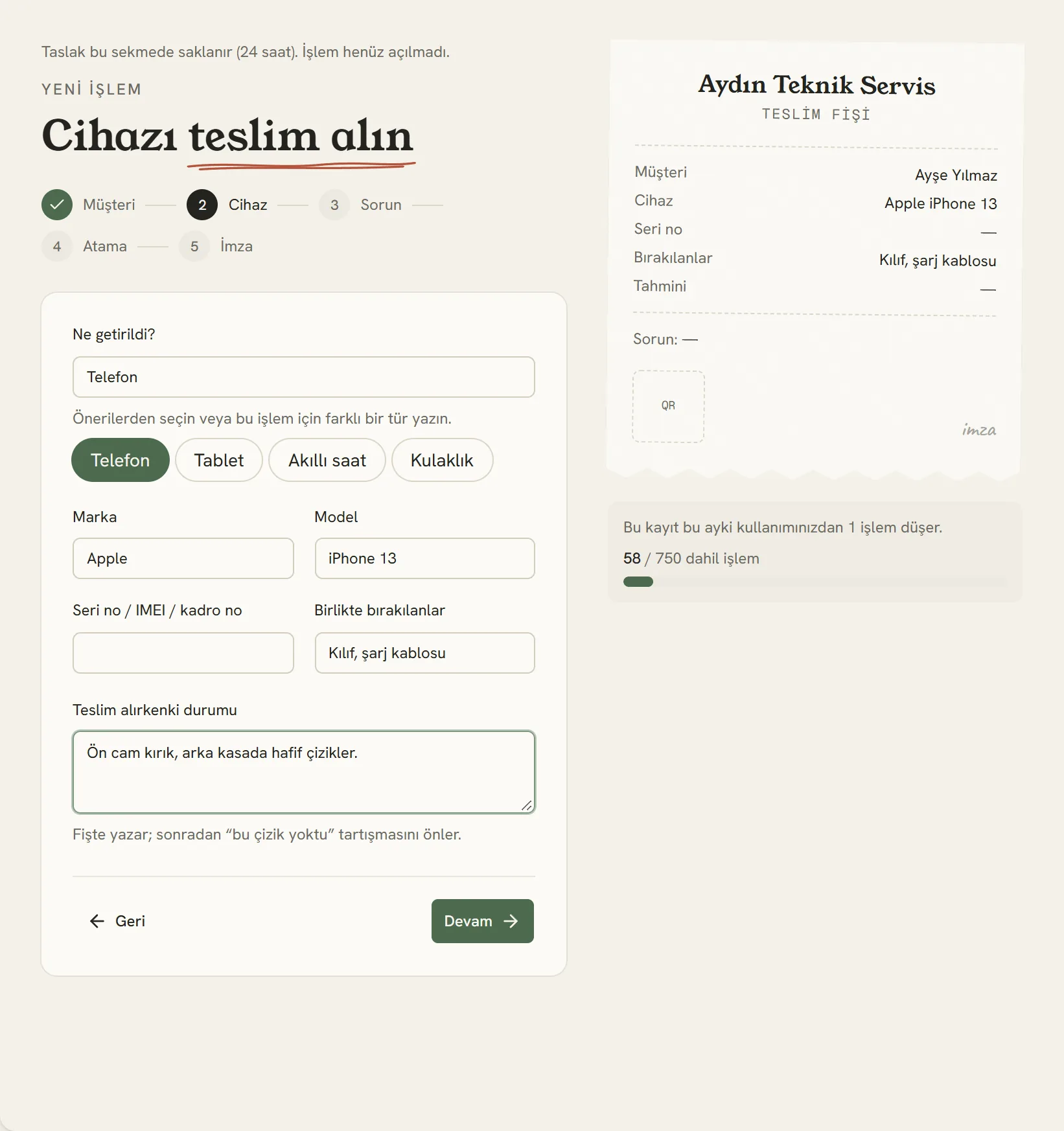
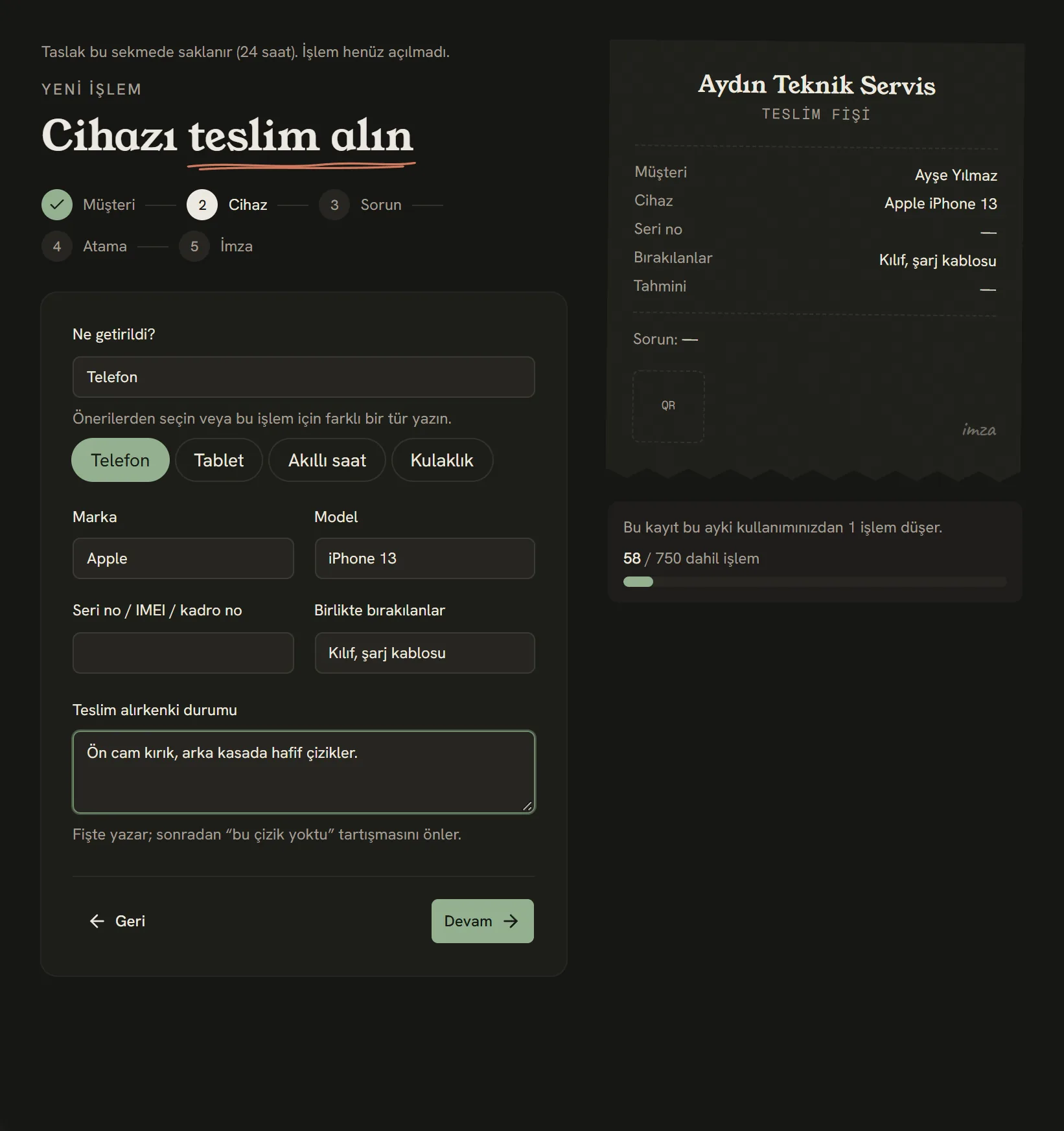
- Device type. The list depends on the sector you chose when you set up your business.
- Brand and model appear on the receipt and in the job list.
- Case, charger, memory card… so nothing goes missing at handover.
- The state the device arrived in: scratches, dents, cracks. It ends the "that scratch wasn't there" argument.
When you enter the serial or IMEI number and the device has been to you before, a This device has been here before note appears: it links to the earlier jobs and tells you whether its warranty is still valid. You'll know at check-in when a device comes back with the same fault.
3. Problem, price and due date
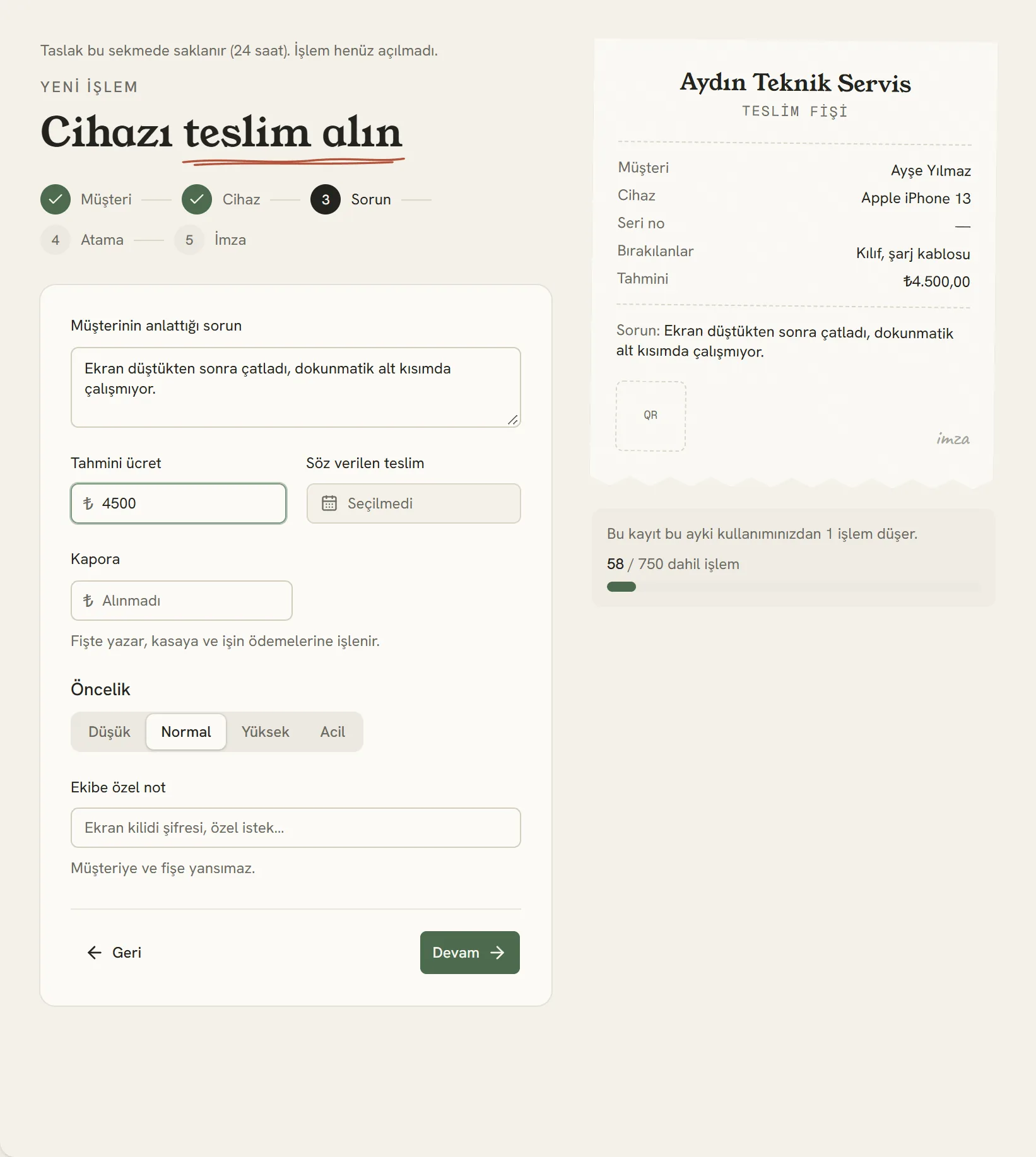
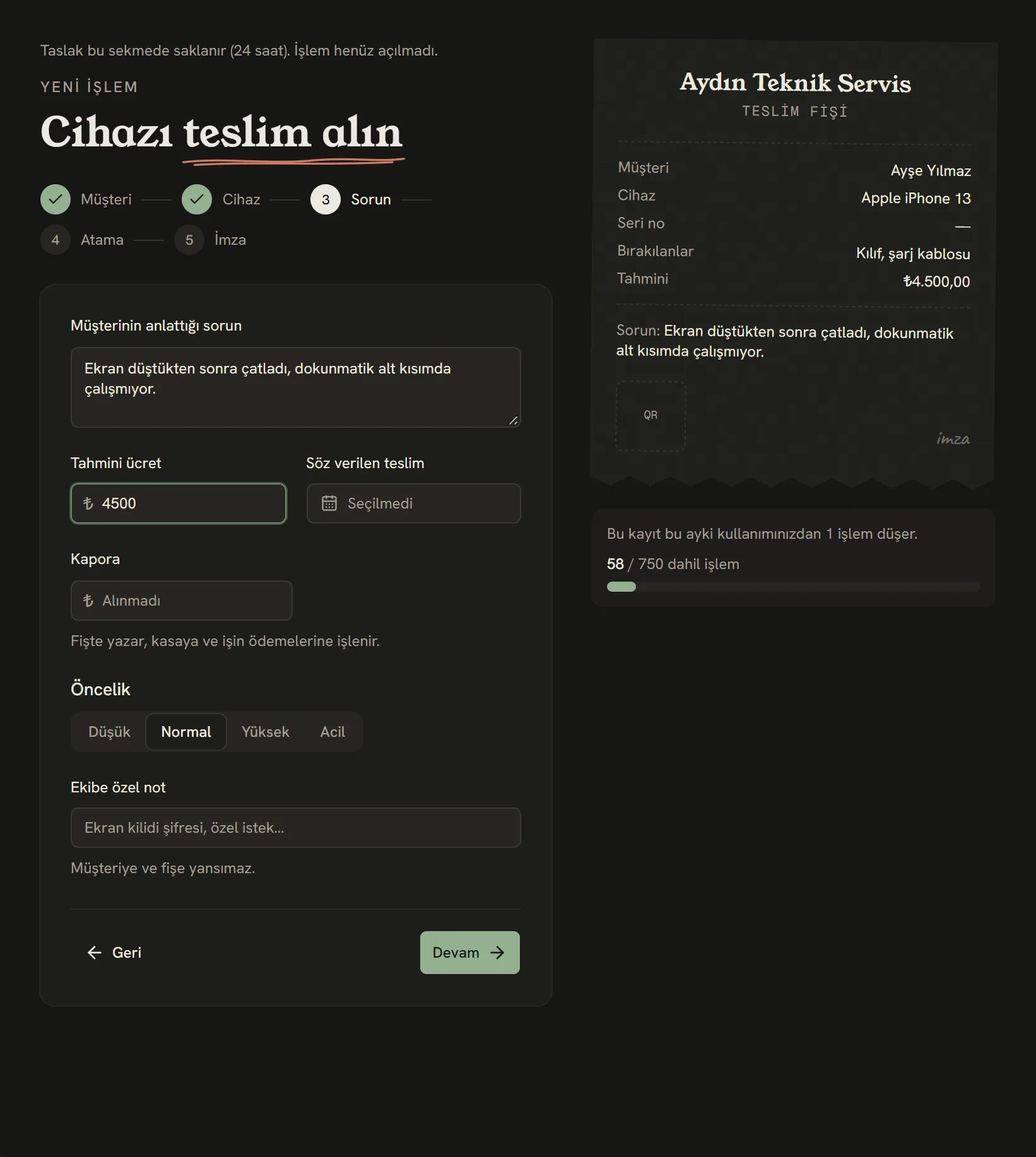
- Write it the way the customer described it. It appears on the tracking page and the receipt.
- Estimated price. The figure you tell the customer before sending a quote.
- The day you promised it back. It shows in the job list and on the board; if it passes, it's marked in red.
- Notes only your team will see, like the screen lock passcode.
If you have more than one branch (the İşletme plan), you choose in this step which branch the job is opened at. The receipt shows that branch's address and phone, and you can filter the job list and reports by branch.
4. Who's working on it?
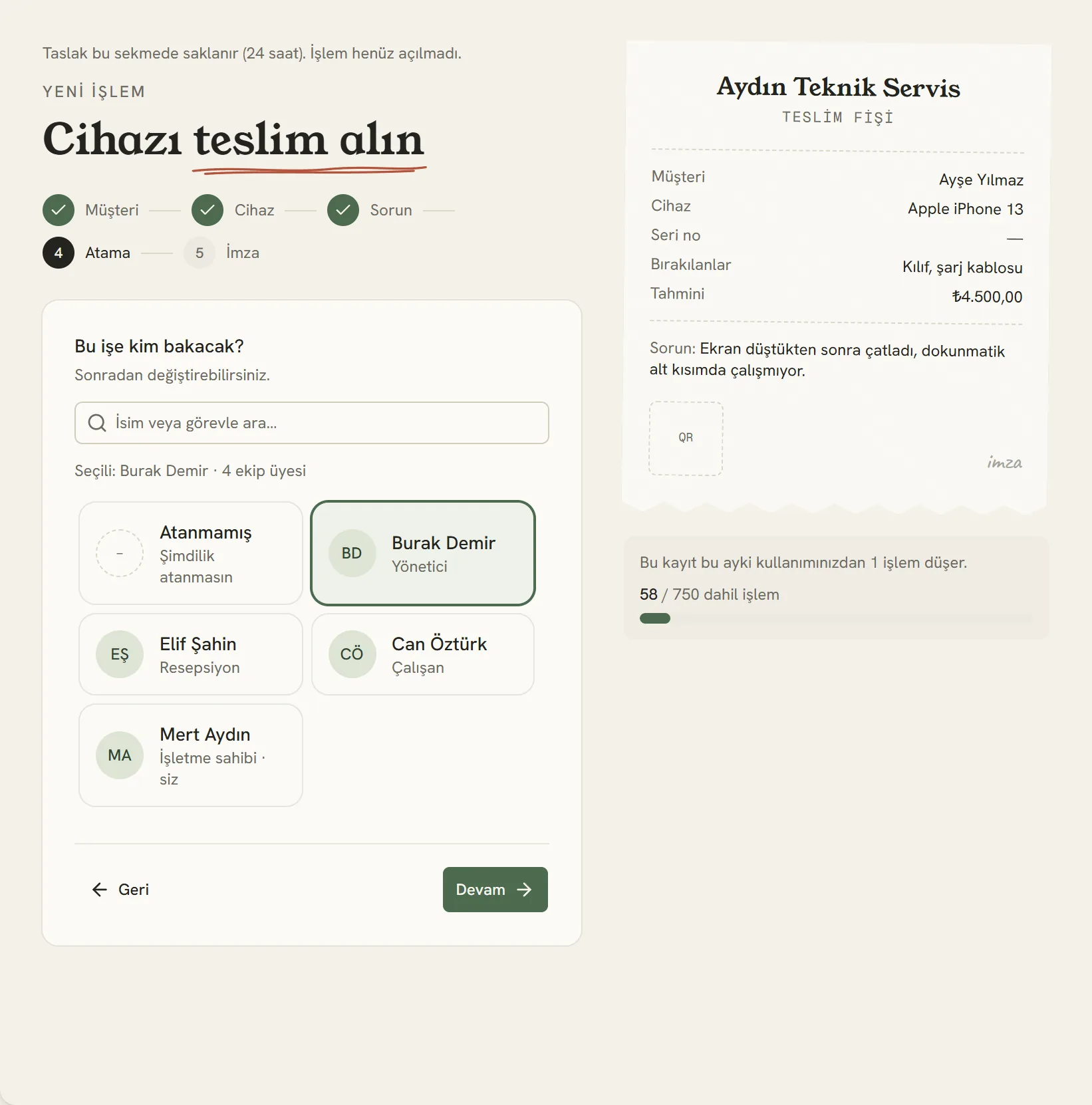
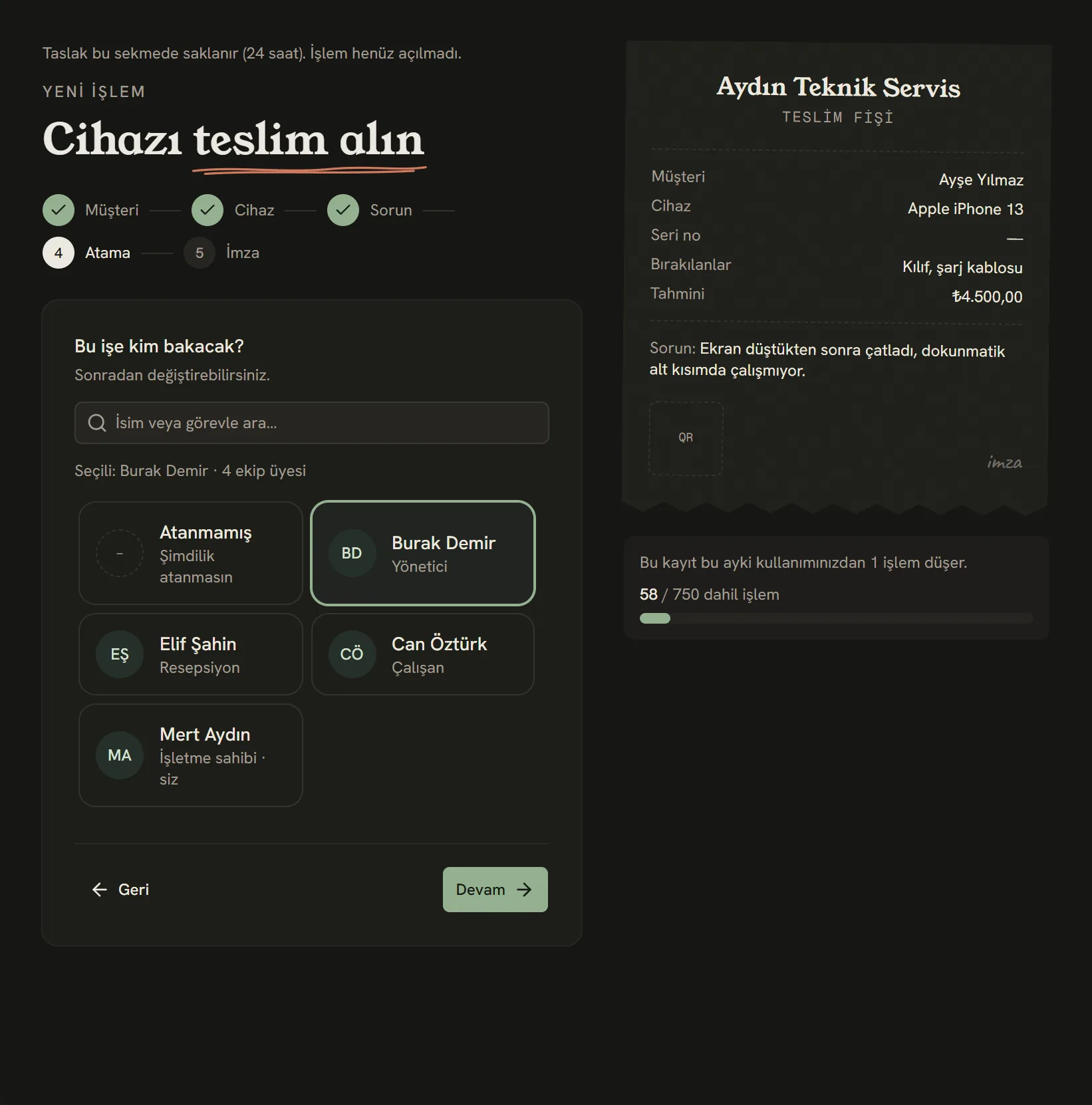
- Give the job to one person. You can change it later from the job page.
Unassigned jobs are counted separately on the dashboard, so a job nobody owns doesn't get forgotten.
5. Signature and receipt
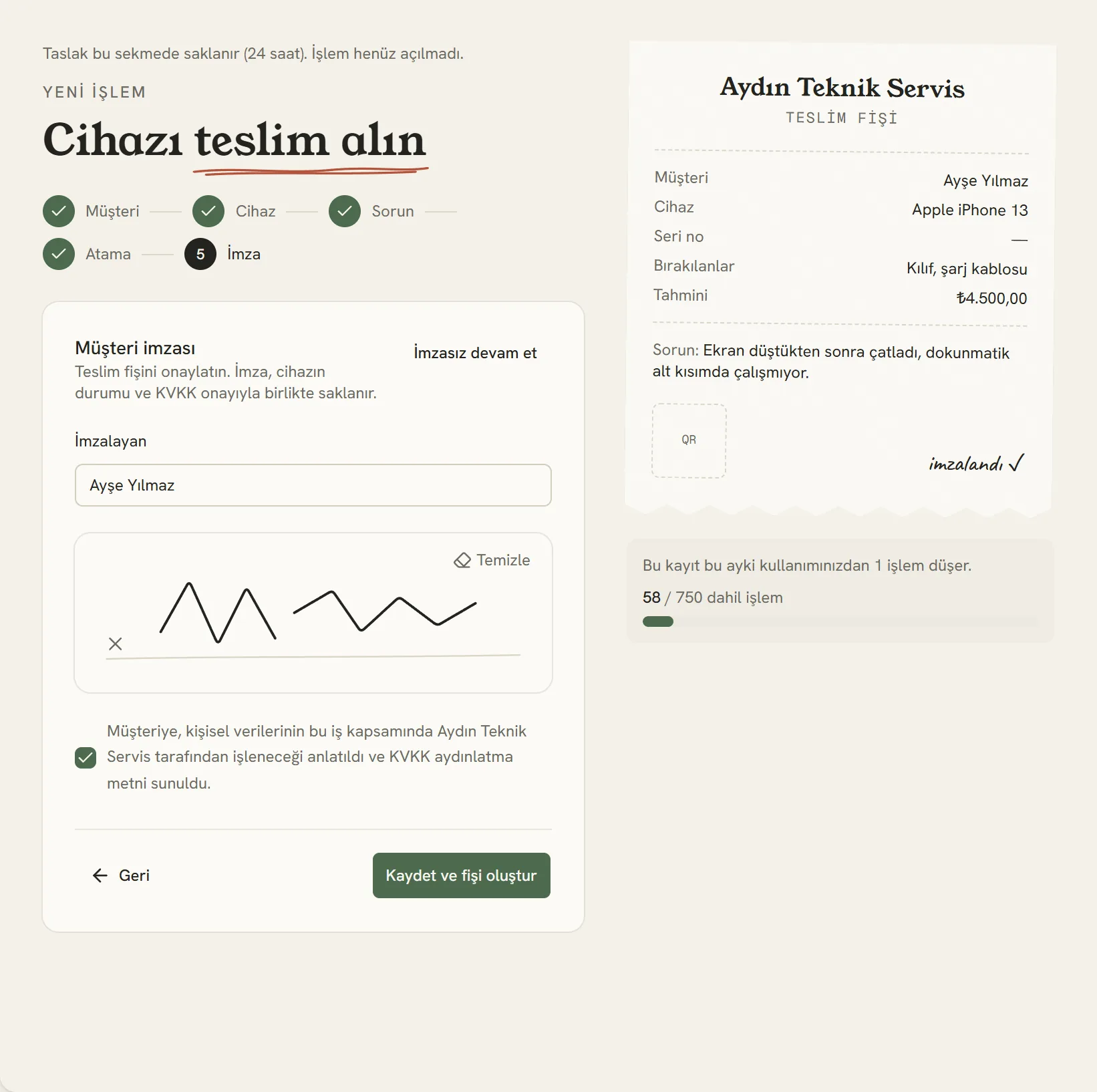
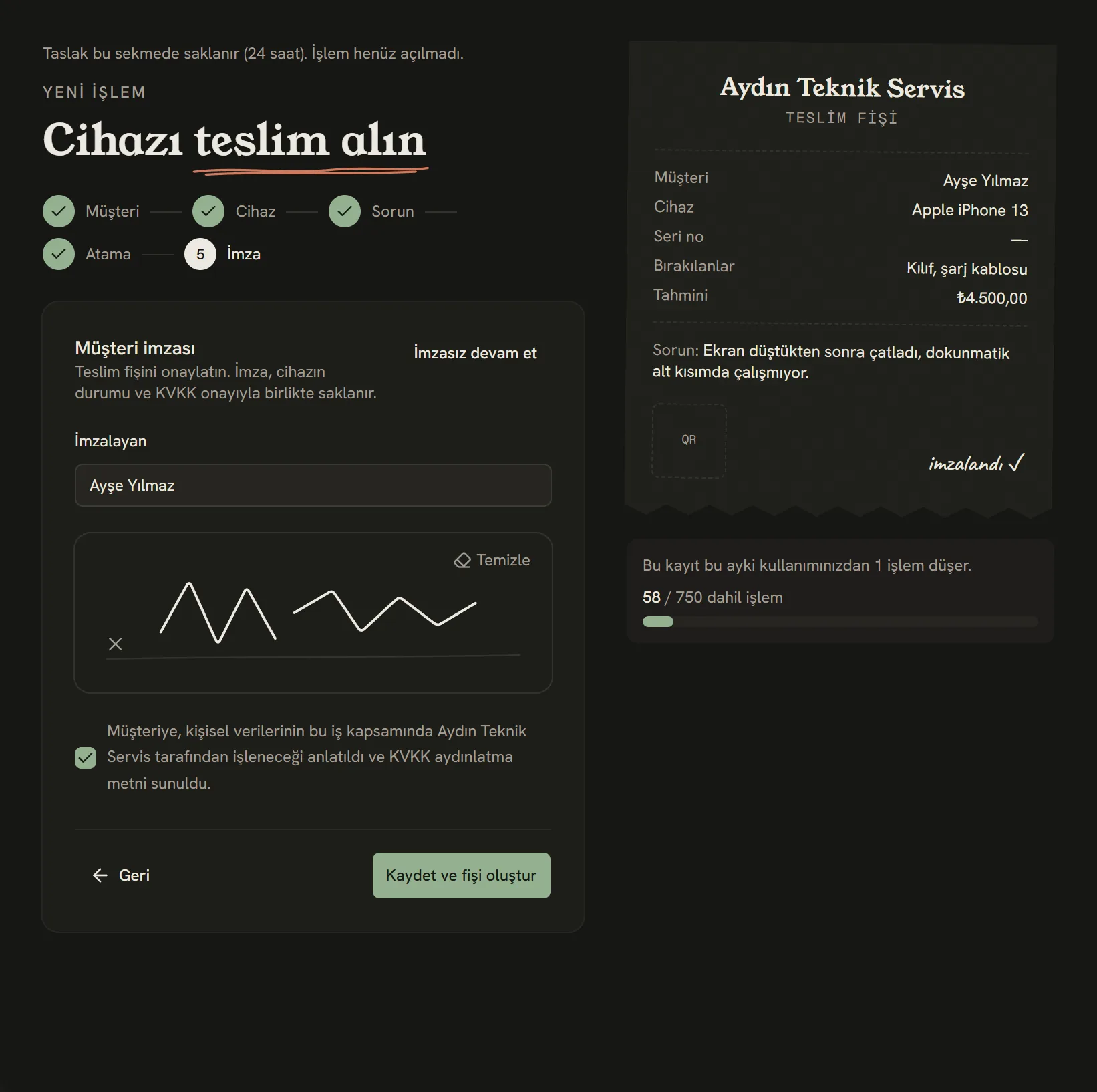
- The customer signs with a finger or the mouse.
- Tick to confirm you've given the KVKK (Turkish data protection law) notice.
- The job is saved and the receipt is prepared.
Once you save, the job page opens. Print the intake receipt and hand it to the customer; the QR code on the receipt opens the tracking page where the customer follows their job from their phone.
What happens next?
- The job appears in the Jobs list and on the dashboard with the status "Checked in".
- If the customer has an email address or your SMS account is connected, the job number and tracking link go out automatically.
- As you change the status, the tracking page updates. Details: Updating the status and keeping the customer informed.
- If you typed something wrong, use Edit on the job page to fix the device, serial number, problem, price and due date. The change is added to the job history as a team note; the signed receipt keeps its original version.
Stuck somewhere? Write to us from Support in the dashboard's left menu; we'll see which screen you're on.