Parts and inventory
Record the parts you have, take what's used on a job out of stock, and add it to the quote if you like. Get notified when a part runs low.
Screens, batteries, seals, belts… The Parts and inventory page in the left menu keeps track of how many parts you have, which one went to which job and what's about to run out.
The stock list
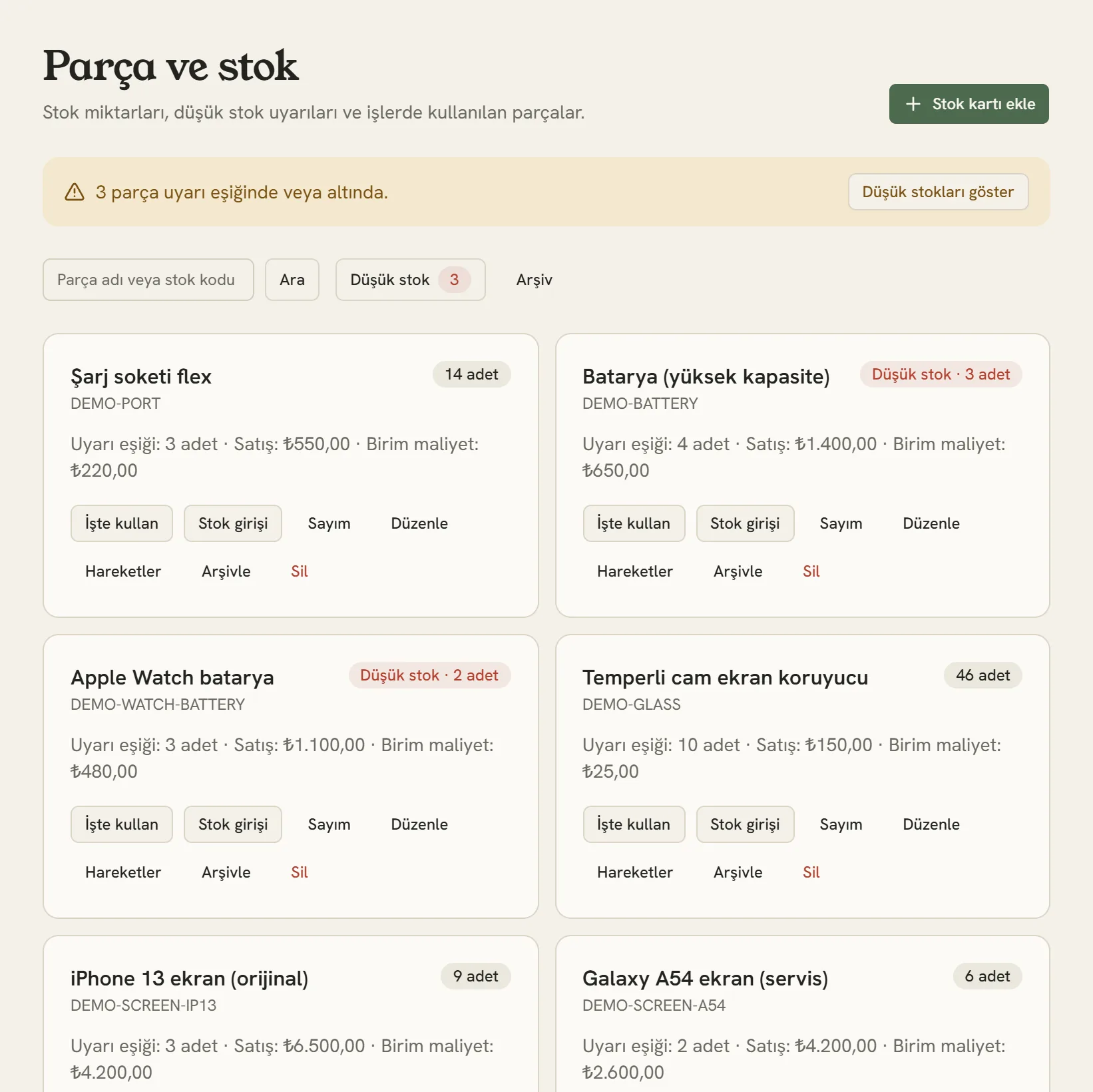
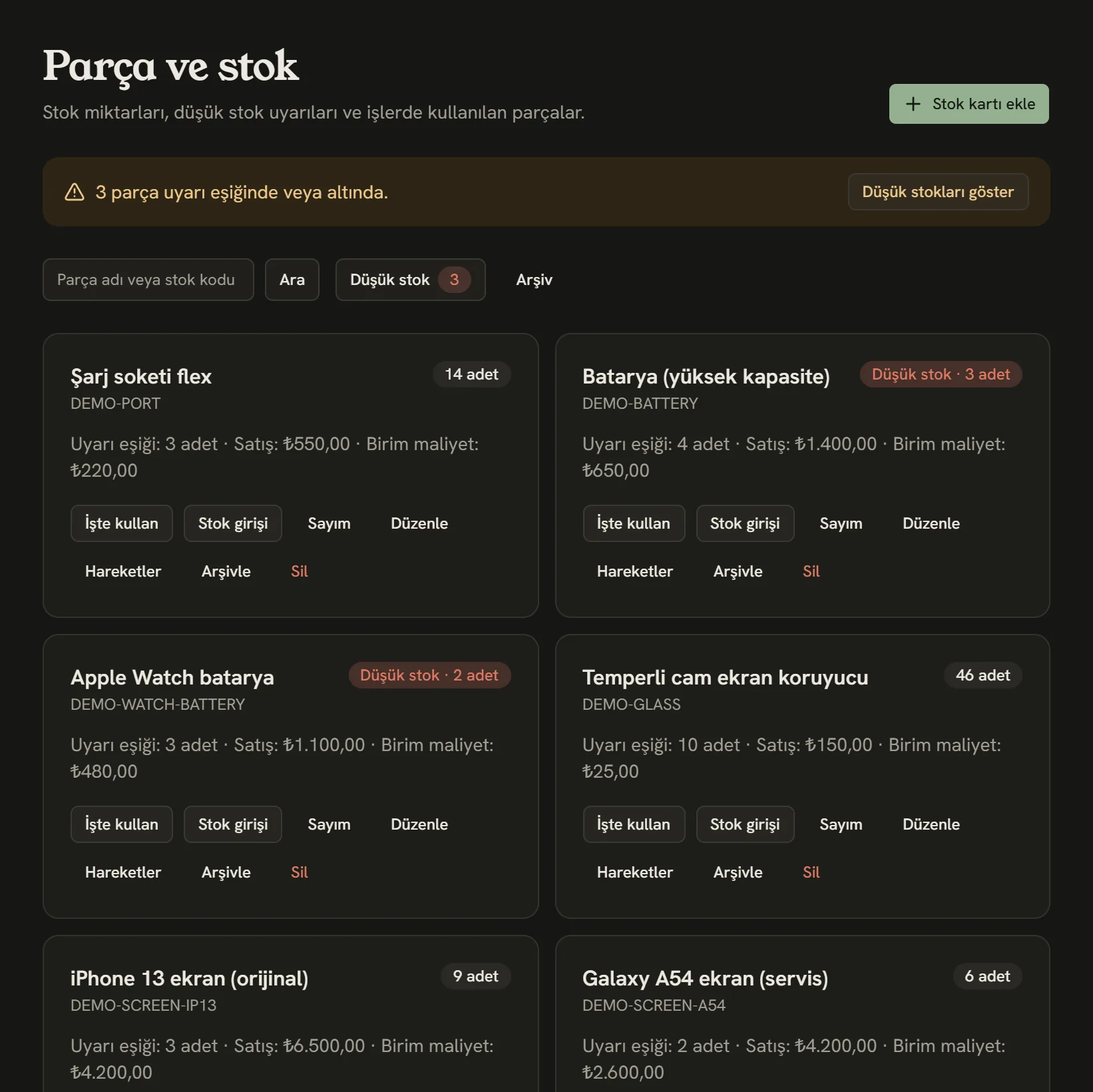
- Open a stock card for a new part.
- If any part has dropped to its alert level, it shows here.
- Find a part by name or stock code.
- Quantity on hand, alert level, sale price and cost.
- Record the part on a job.
Opening a stock card
Tap Add stock card and fill in:
- Part / product name and Stock code: search finds the part by either.
- Unit: piece, metre, litre, kilogram, pack…
- Alert level: when the quantity drops to this, the part becomes "Low stock".
- Unit cost and Sale price: the sale price is the price used when you add the part to a quote. Only the business owner and managers see the cost.
The card opens with a quantity of zero. After opening the card, add what you have with Stock in.
Stock in, use and counts
Each card has buttons at the bottom:
| Button | What it does |
|---|---|
| Stock in | Adds incoming parts. If you enter the unit cost for this delivery, the card's cost is updated as an average with the stock on hand. |
| Use on job | Records the part on the job number you enter and takes the quantity out of stock. |
| Count | If what you counted on the shelf doesn't match the record, enter the difference (e.g. -2). |
| Movements | All of the card's stock-ins, uses and counts: who did it, when, and what was left. |
| Archive | Removes a part you no longer keep from the list; its history stays. You can find it again with the Archive button. |
You can delete a card with no movements completely with Delete. A card with movements isn't deleted; it's archived.
Using parts from the job page
Technicians can also record a part from the Parts tab on the job page while fitting it.
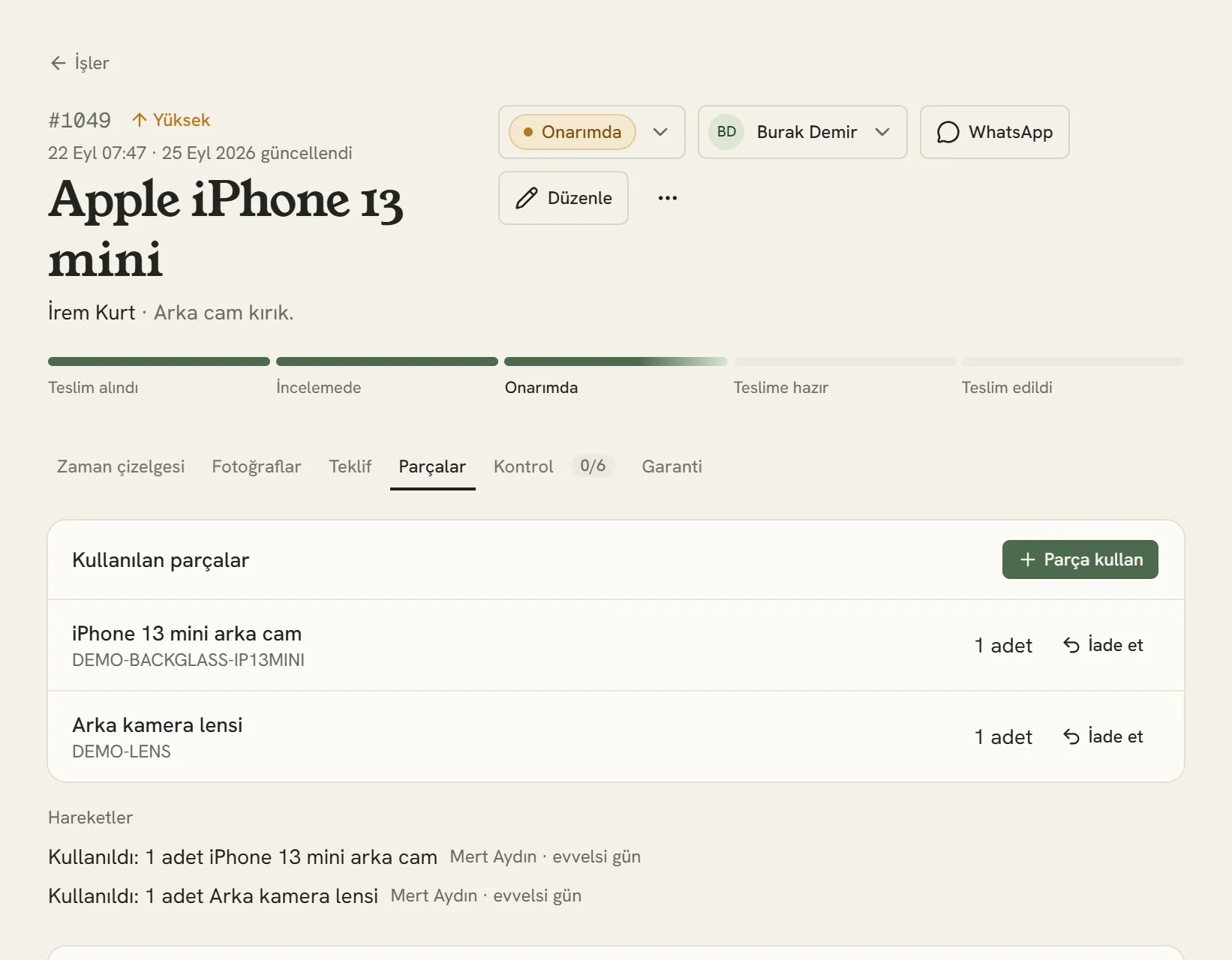
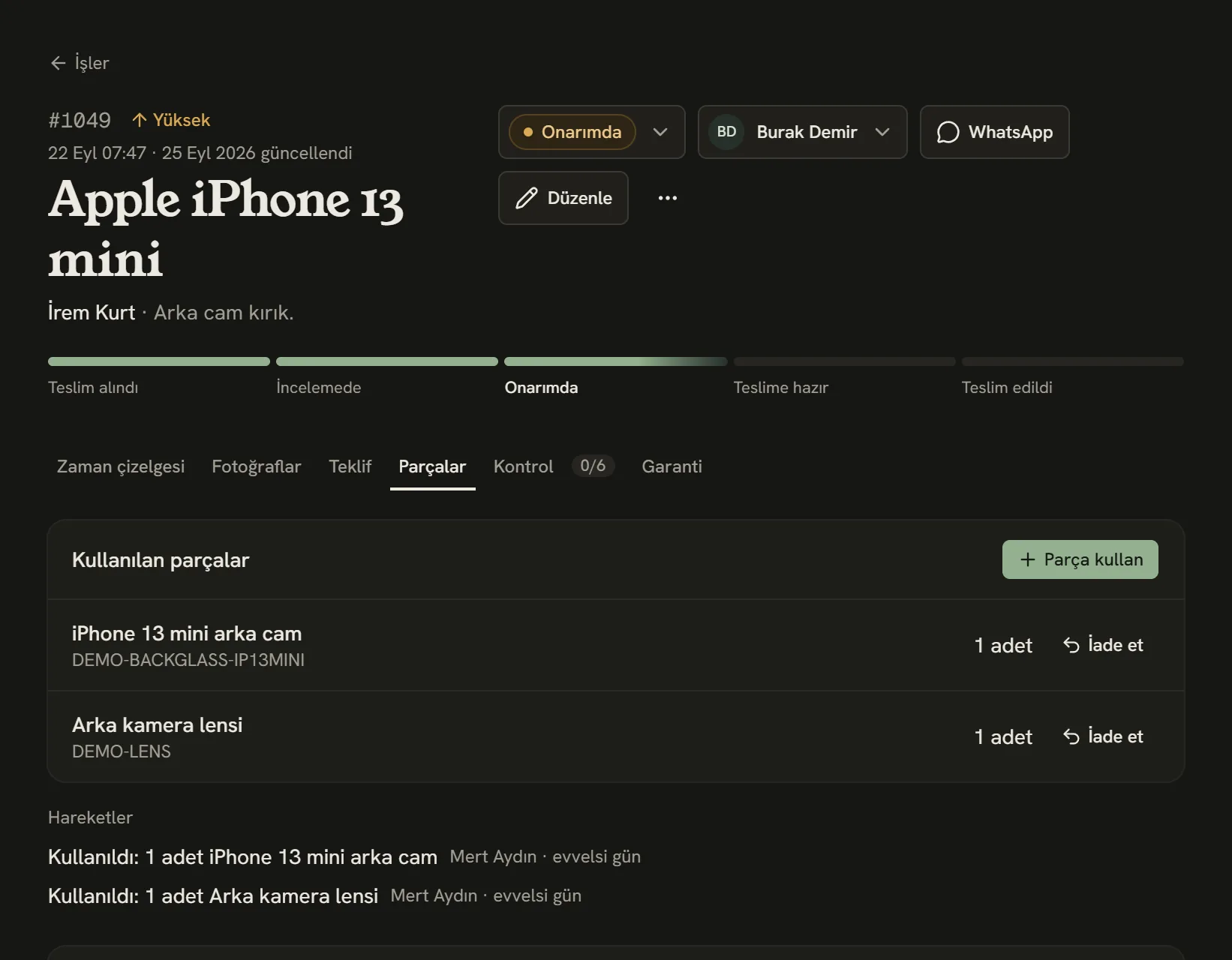
- Parts used on the job and their movements.
- Pick a part from stock and enter the quantity.
In the Use part window, search for the part by name or code and enter the quantity. If Add to quote is ticked, the part is also added to the quote at its sale price:
- If the job has a draft quote, it's added to that.
- If the job has no quote at all, a new draft quote is opened.
- If the quote has been sent to the customer or approved, it isn't changed; the part is only taken out of stock.
Put a part that was recorded by mistake or not fitted back into stock with Return on the same tab.
When stock runs low
The moment a part's quantity drops to or below its alert level, the business owner and managers get a notification: "Stock running low" or "Out of stock". Tap the notification to open just the parts that are low on stock. The yellow bar at the top of the stock list and the Low stock button show the same list.
Who can do what?
| Role | What they can do |
|---|---|
| Business owner, manager | Everything: opens and edits cards, records stock-ins and counts, archives, sees the cost. |
| Front desk, employee | Sees the list, uses parts on jobs and returns them. |
Stuck somewhere? Write to us from Support in the dashboard's left menu; we'll see which screen you're on.