Appointments
On-site service, a maintenance visit or a customer coming to the counter. See the calendar by day or week, enter recurring maintenance once, and let the customer get a reminder the day before.
The Appointments page in the left menu is your business's calendar. All times are Turkey time.
The calendar
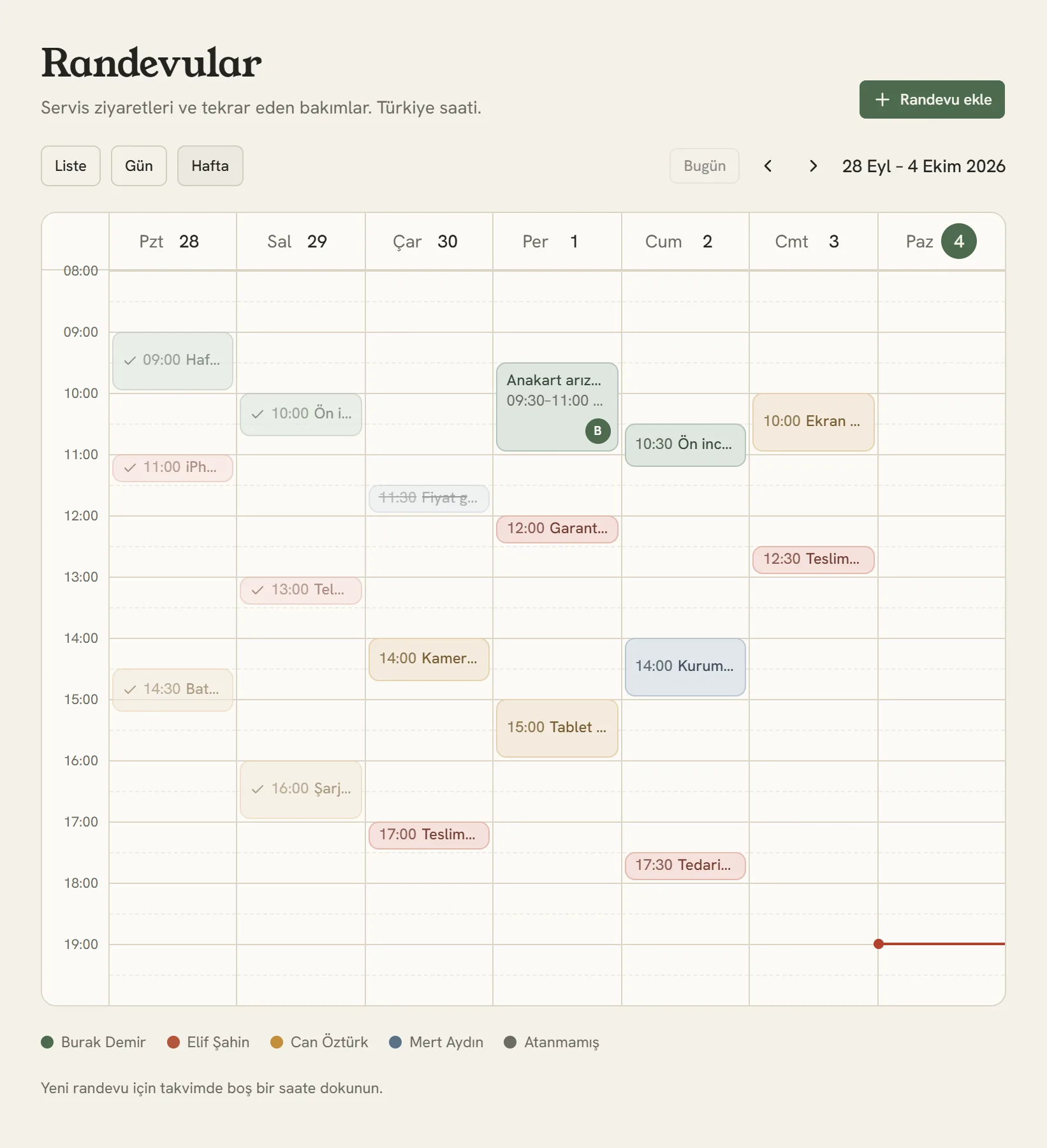
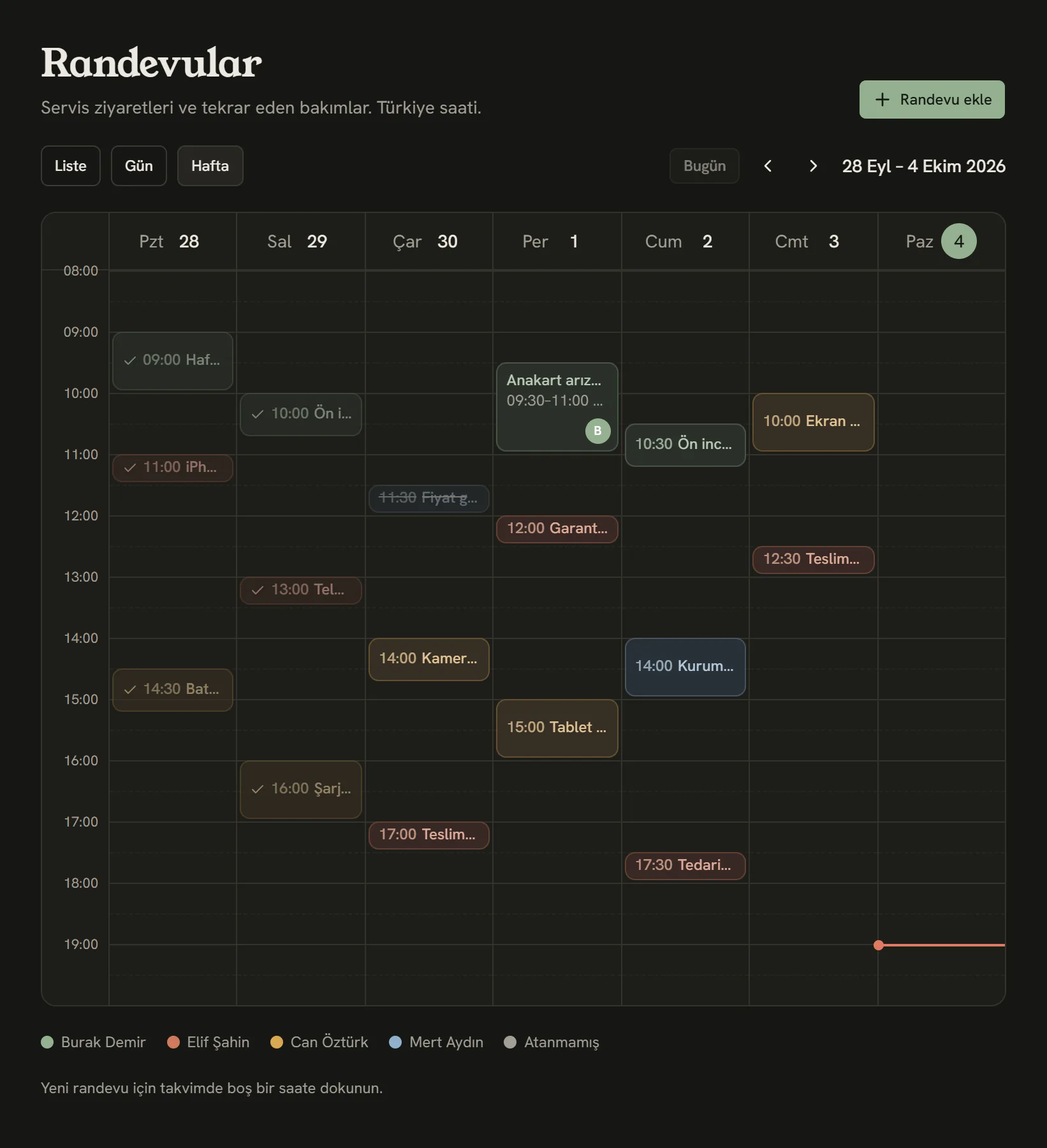
- New appointment.
- List, day or week.
- Goes back to today. Use the arrows next to it to move to the previous and next day or week.
- Today's date.
On a phone the calendar opens by day, on a computer by week. Each appointment is in the color of the person responsible for it; who each color belongs to is shown under the calendar. The List view shows upcoming appointments in order; planned, completed and cancelled ones can be filtered separately.
Tapping an empty time slot on the calendar opens a new appointment at that time.
Adding an appointment
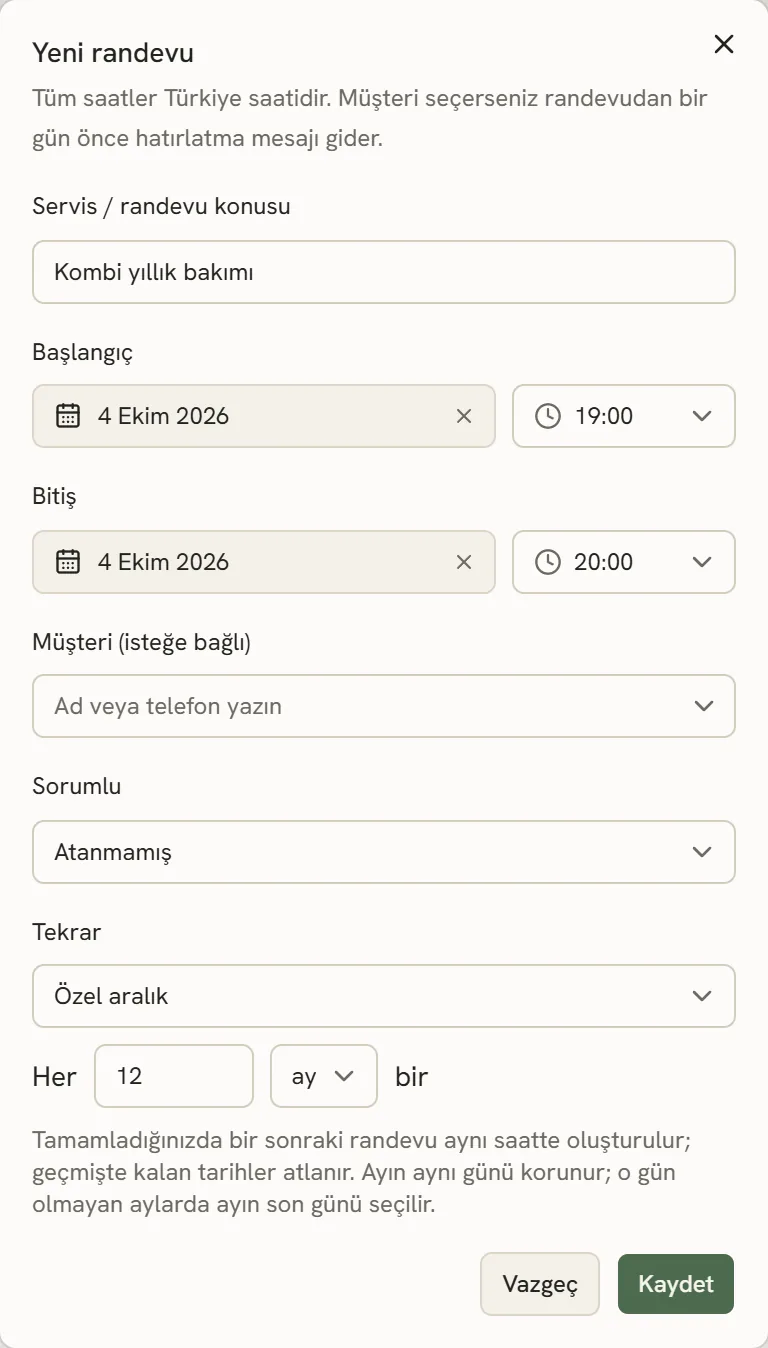
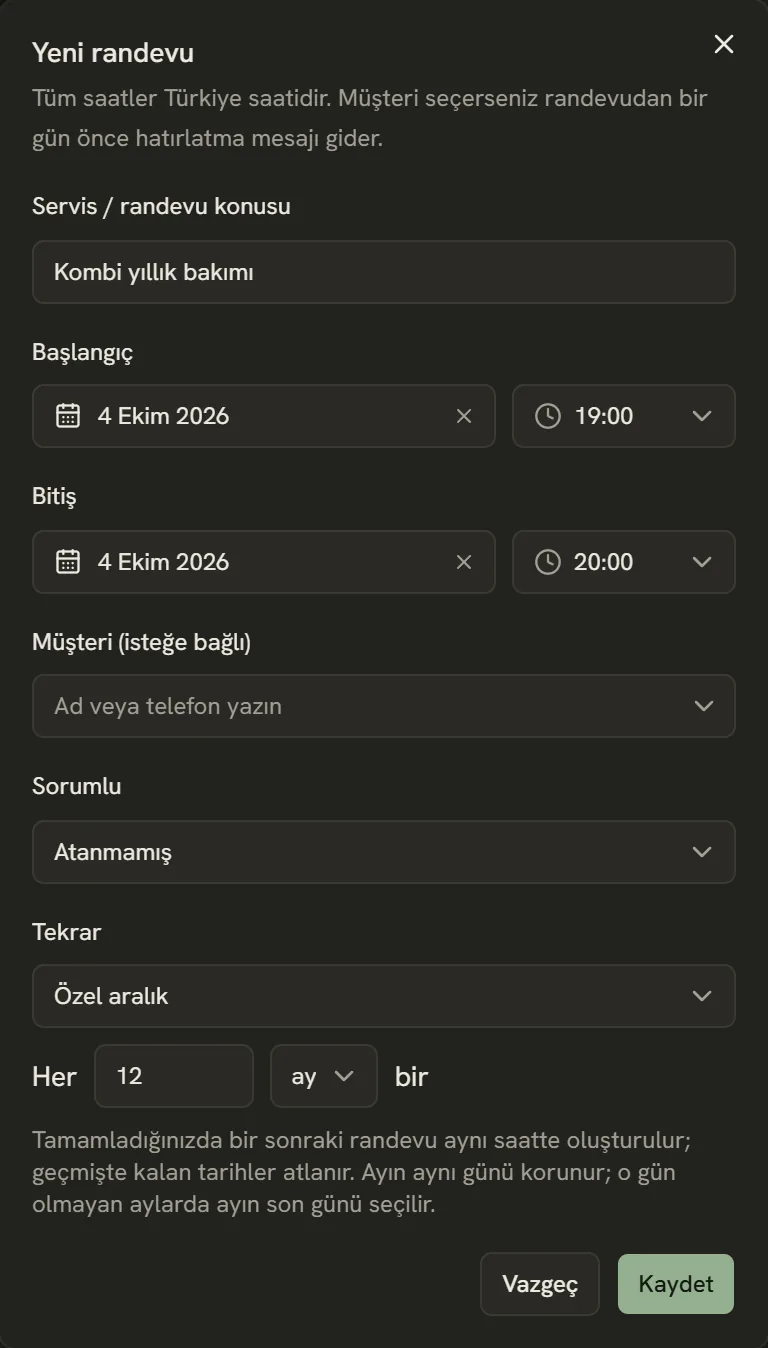
- What it's for: "Annual boiler service", "Air conditioner installation"…
- Start day and time. The end works the same way; an appointment can last at most 24 hours.
- Optional. If you pick one, the customer gets a reminder.
- Who will go to or handle the appointment.
- For recurring maintenance.
- Save.
The same person can't be given two appointments with overlapping times; you get a warning when you save.
Recurring appointments
From the Repeat list, choose Every day, Every week, Every month or Custom interval. With a custom interval you enter something like "Every 6 months" or "Every 12 months".
When you mark the appointment as Completed, the next one opens by itself at the same time; dates already in the past are skipped. With monthly repeats the same day of the month is kept; in months without that day, the last day of the month is used.
Closing an appointment
Tap an appointment on the calendar:
- Completed: the visit is done. If it repeats, the next one opens.
- Convert to job: if the device came to the counter, or an on-site repair needs a job record, this opens the new job wizard; the appointment is completed and the job number is linked to it.
- Edit or Cancel.
Reminding the customer
24 hours before a planned appointment with a customer selected, the customer gets a reminder. On WhatsApp if it's connected and the customer has agreed, otherwise by SMS; never both. If neither SMS nor WhatsApp is connected, no reminder goes out.
Details: Automatic notifications and SMS fallback.
Who can do what?
| Role | What they can do |
|---|---|
| Business owner, manager, front desk | Adds, edits, cancels and completes appointments, and converts them to jobs. |
| Employee | Sees the calendar and marks appointments as completed. |
Stuck somewhere? Write to us from Support in the dashboard's left menu; we'll see which screen you're on.